# Linking Users to Projects
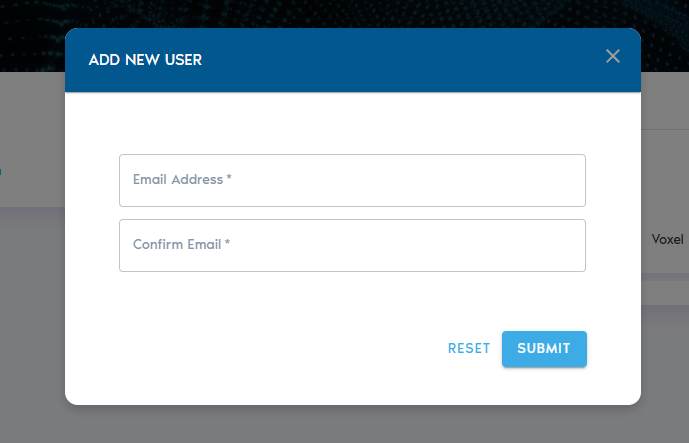
VoxelSpace features a built-in security model that controls user access based on authentication and assigned permissions. Once a user is authenticated via the login provider, they can be linked to specific projects with appropriate access levels.
**Adding a User to a Project**
To assign a user to a project:
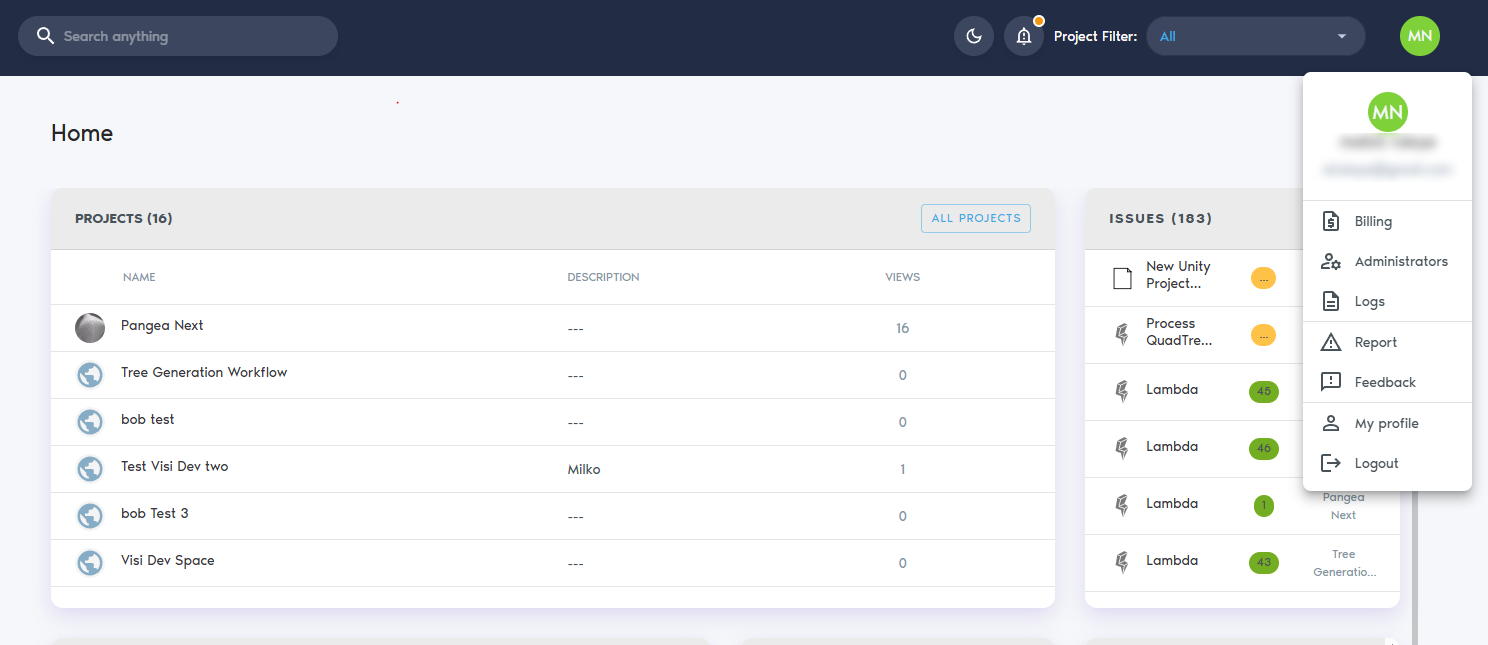
1\. **Go to your user profile** by clicking on your name or profile icon (My profile).
[](https://help.mystart.com/uploads/images/gallery/2025-03/capture-new.PNG)
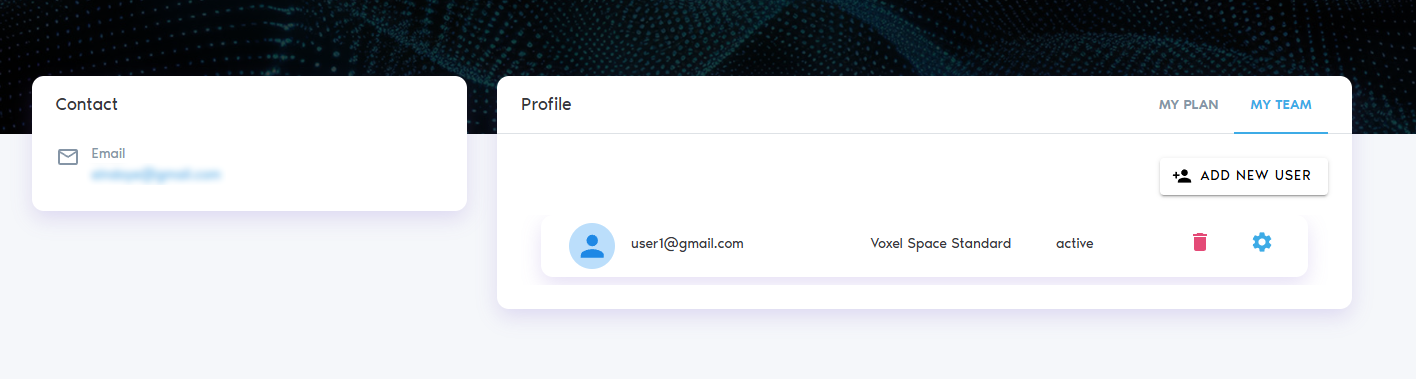
2\. Navigate to the **“My Team”** tab.
[](https://help.mystart.com/uploads/images/gallery/2025-03/capture-new-2.PNG)
3\. Click **“Add New User”** to create a new user account.
4\. After the user is created, click the **Settings** icon next to their name.
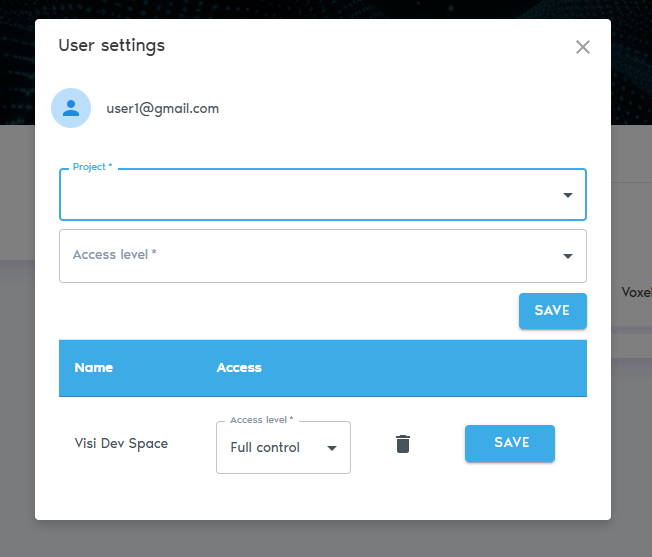
5\. Select **“Add Project”** to assign a project to the user.
[](https://help.mystart.com/uploads/images/gallery/2025-03/7tOimage.png)
6\. In the dialog box, enter the following details:
- - - **User ID**: This is typically the user's email address, but it may vary depending on your authentication setup. If you're unsure, consult your system administrator.
- **Access Level**: Choose between:
- **Read-Only**: The user can view project data but cannot modify or add content.
- **Full Control**: The user can view, edit, add data, and manage user access for the project.
7\. Click **“Add User”** to send an invitation. The user will receive an email with instructions to join the platform and access the assigned project.
[](https://help.mystart.com/uploads/images/gallery/2025-03/40Wimage.png)
**Managing User Access**
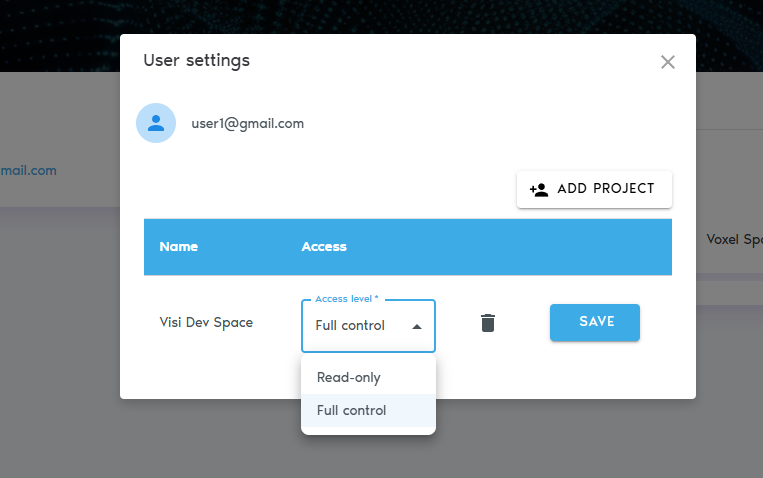
- To **change a user’s access level**, click the **Settings** icon next to their name and select **“Access Level.”**
[](https://help.mystart.com/uploads/images/gallery/2025-03/UT2image.png)
- To **remove a user from a project**, open the context menu beside their name and select **“Remove from Project.”**