# Introduction
## Working with Projects
The VoxelSpace platform uses a **data-centric approach** to help organizations scale the spatial understanding of their operations.
At the core of this approach is a **shared repository of spatial data objects**, known within the platform as **Entities**. These Entities represent a wide range of geospatial and design data types, including:
- Point Clouds
- Terrain Models
- Block Models
- Planning / Design Solids
- BIM (Building Information Models)
Entities can be shared across different teams within the organization—subject to security and access controls.
Most organizations generate **thousands of Entities annually**. These may include datasets captured from the field, models created by internal teams, or results generated through automated spatial processing. The full collection of these assets forms the organization’s **Catalog**.
## Project Structure and Organization
To manage large volumes of Entities, the platform organizes the Catalog into a hierarchy of **Projects** and **Folders**.
· **Projects** serve as containers for related Entities, workflows, and team collaboration.
· Each project can have its own **custom folder structure**, defined by the project team.
· **Access permissions**, folder layouts, and the selection of Entities within each project are configurable by the organization’s users.
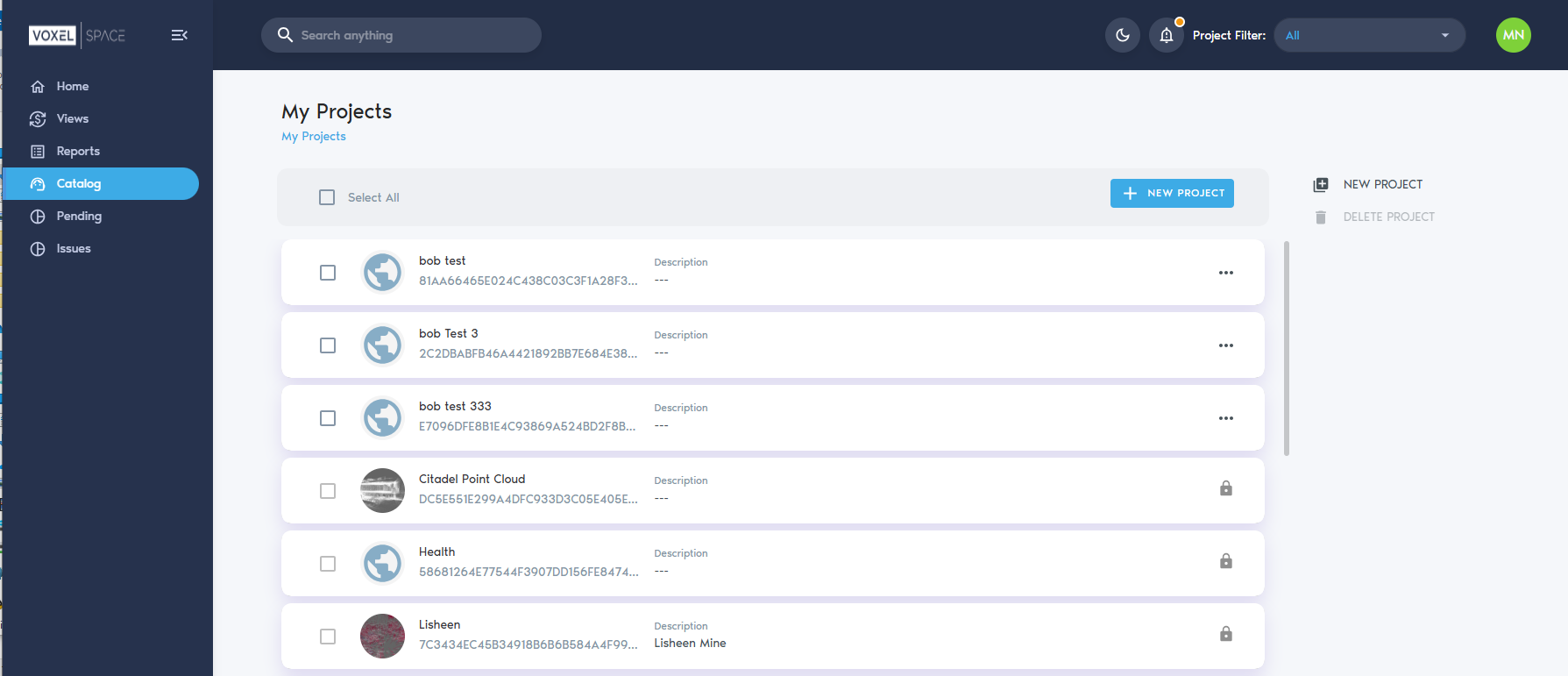
After logging in, users can navigate to the **“Catalog”** section in the left-hand menu to see a list of accessible Projects.
[](https://help.mystart.com/uploads/images/gallery/2025-03/Qkpimage.png)
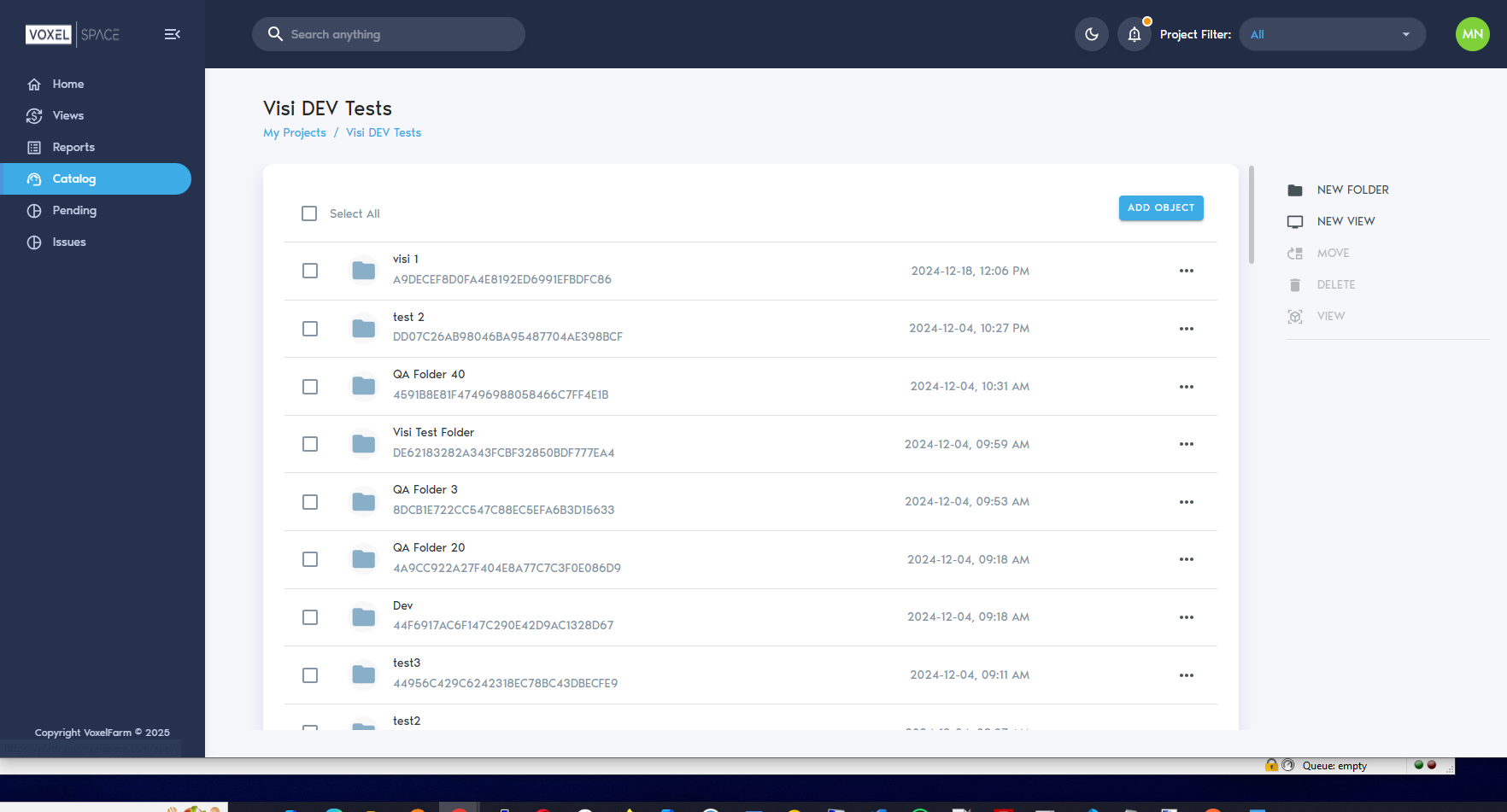
Clicking on a Project will open its workspace. This loads the **Project Catalog**, where users can browse and interact with the folder structure and associated Entities.
[](https://help.mystart.com/uploads/images/gallery/2025-03/pPSimage.png)
Users can organize the catalog by creating folders using the **“New Folder”** button. This helps maintain clarity and structure as more Entities are added to the project.