Adding Spatial Entities to a Project
You can use the VoxelSpace WebUI to add a wide range of spatial entities — including point clouds, block models, terrain, meshes, and more. These entities serve as the foundation for analysis, visualization, collaboration, and reporting within your project.
- Introduction
- Point Cloud (Raw Data)
- Ortho-Imagery (Raw Data)
- Block Model (Raw Data)
- Mesh (Raw Data)
- Indexed Mesh (Processed)
- Indexed Point Cloud (Processed)
- Voxel Point Cloud (Processed)
- Voxel Terrain (Processed)
- Voxel Block Model (Processed)
- Program
- View
- Report
- Data Export
- Heightmap (DEM)
Introduction
You can use the VoxelSpace WebUI to add a wide range of spatial entities—including point clouds, block models, terrain, meshes, and more. These entities serve as the foundation for analysis, visualization, collaboration, and reporting within your project.
Raw Data Samples

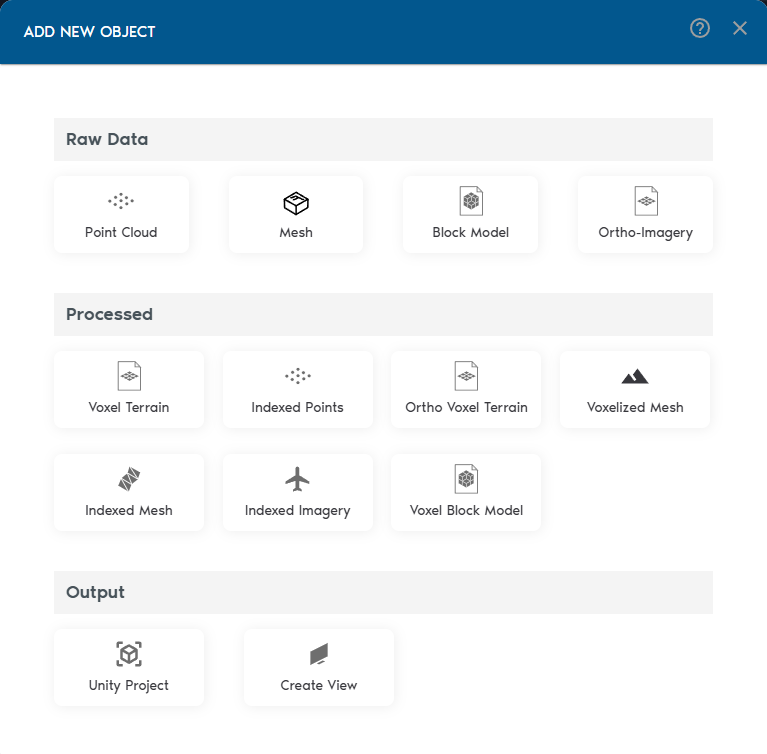
- Add Spatial Entities
Inside your project, click “Add Object” to begin adding spatial entities. VoxelSpace supports a wide range of input formats:
- Point Clouds
- Meshes (OBJ/FBX)
- Block Models
- Ortho-Imagery
- Process Your Raw Data
Once your raw data is in the system, VoxelSpace lets you convert it into optimized formats for analysis and visualization. These include:
- Indexed Mesh
- Indexed Point Cloud
- Voxel Terrain
- Voxel Block Model
- Voxelized Mesh
- Ortho Voxel Terrain
Choose the format that fits your use case—whether it's simulation, comparison, or rendering.
- Create a View
Views are where VoxelSpace truly shines. With a View, you can combine multiple datasets into a 3D scene, configure visual styles, explore cross-sections, and share insights with your team.
Views are collaborative, reusable, and can be saved or shared across your organization.
Point Cloud (Raw Data)
A Point Cloud entity stores raw spatial data collected from sources such as LiDAR or photogrammetry. Uploading point clouds into VoxelSpace is the first step toward visualizing and processing high-resolution terrain or structure data.
Upload raw LiDAR or scanned data as a point cloud. The system accepts LAS, LAZ, ASCII, or ZIP formats.
→ Used for spatial analysis, terrain generation, and modeling.
Uploading a Point Cloud
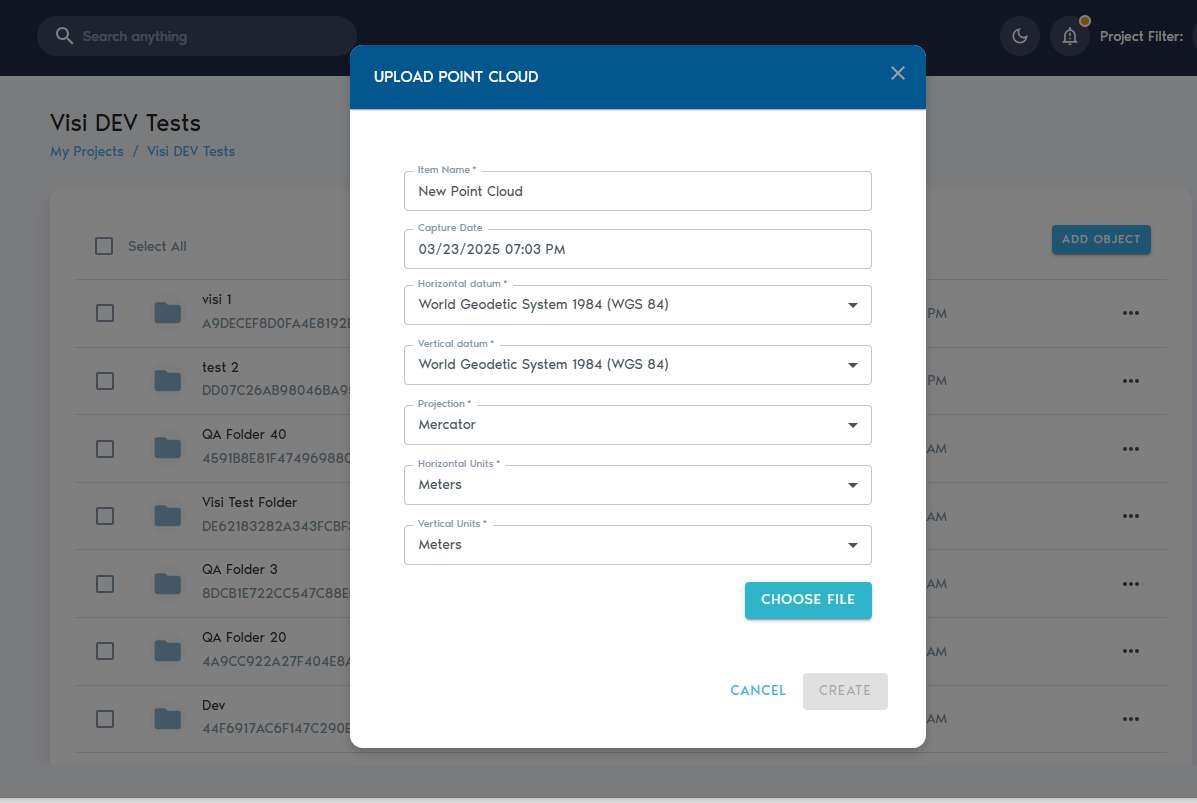
4. You’ll be prompted to enter the following details:
|
Field |
Description
|
|
Item Name |
A descriptive, readable name for the new point cloud entity.
|
|
Capture Date |
(Optional) The original date the point cloud data was collected.
|
|
Horizontal Datum |
The horizontal reference system used (e.g., WGS 84, NAD83).
|
|
Vertical Datum |
The vertical reference system used for elevation or depth.
|
|
Projection |
The coordinate projection applied to the dataset.
|
|
Horizontal Units |
Units used for horizontal measurements (e.g., meters or feet).
|
|
Vertical Units |
Units used for vertical measurements (e.g., meters or feet). |
5. After entering the required metadata, click “Choose Files” to upload your data.
You can select multiple files during upload. The platform currently supports the following formats:
- Text files (ASCII) with comma- or space-separated values
- LAS files
- LAZ files
- ZIP archives containing any of the above formats
6. Once files are selected, click “Create” to begin the upload process.
You can monitor the upload progress from the “Pending” section within the selected project.
Ortho-Imagery (Raw Data)
The Ortho-Imagery entity stores a set of georeferenced images—typically aerial or satellite imagery—used for detailed mapping, visualization, or terrain analysis.
Add georeferenced aerial imagery with associated world files (e.g., JPG + JGW). Supports bulk uploads via ZIP.
→ Ideal for surface visualization and texture mapping.
Uploading Ortho-Imagery
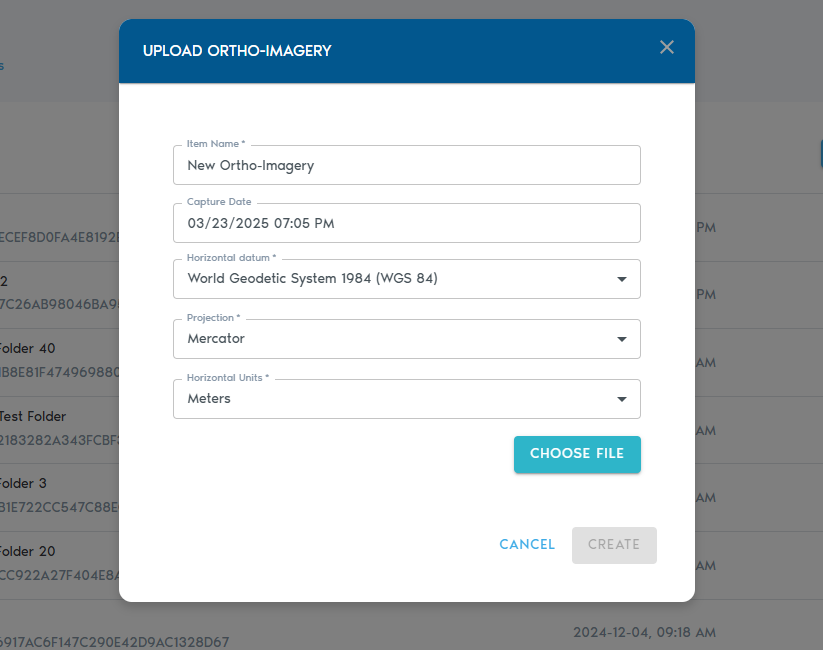
3. You’ll be prompted to provide the following metadata:
|
Field |
Description
|
|
Item Name |
A readable, descriptive name for the new imagery set.
|
|
Capture Date |
(Optional) The original date when the imagery was captured.
|
|
Horizontal Datum |
The horizontal datum used in the world registration files (e.g., WGS 84, NAD83).
|
|
Projection |
The projection used by the world registration files.
|
|
Horizontal Units |
Units used in the registration files (typically meters or feet). |
Uploading Files
· Click “Choose Files” to select the image files you wish to upload.
· Each image must have a corresponding world file for proper georeferencing.
· You can also upload ZIP archives that contain both images and their associated world registration files.
|
Image Format |
Expected World File Extension |
|
.JPG |
.JGW |
|
.PNG |
.PGW |
|
.BMP |
.BPW |
|
.TGA |
.TAW |
|
.TIF |
.TFW |
4. Once your files are selected, click “Create” to begin the upload process.
5. You can track the progress of your upload in the “Pending” section of the project’s page.
Block Model (Raw Data)
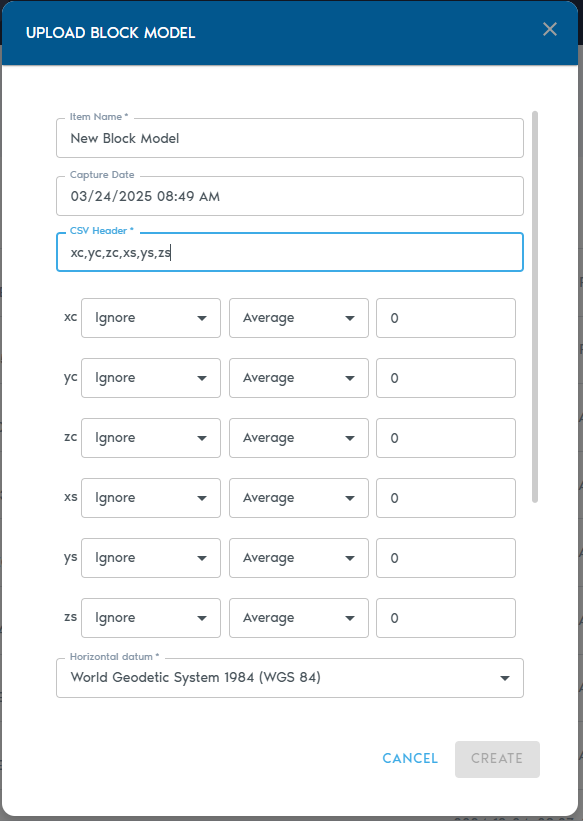
A Block Model entity stores structured 3D block data—typically used in resource estimation, geological modeling, and spatial analysis. The model is uploaded as a comma-separated ASCII text file, where each row represents an individual block.
Import structured block models in CSV format. Each row represents a volumetric block with positional and attribute data.
→ Commonly used in mining and geological modeling.
Uploading a Block Model
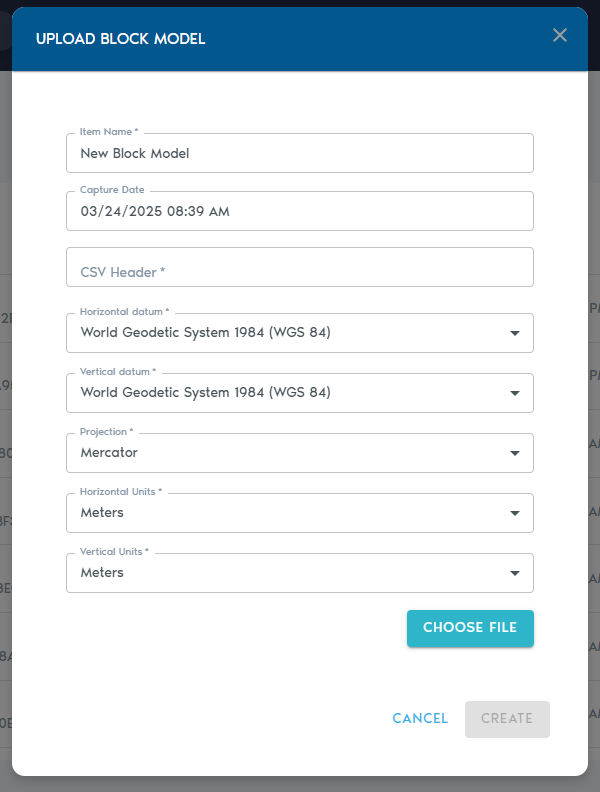
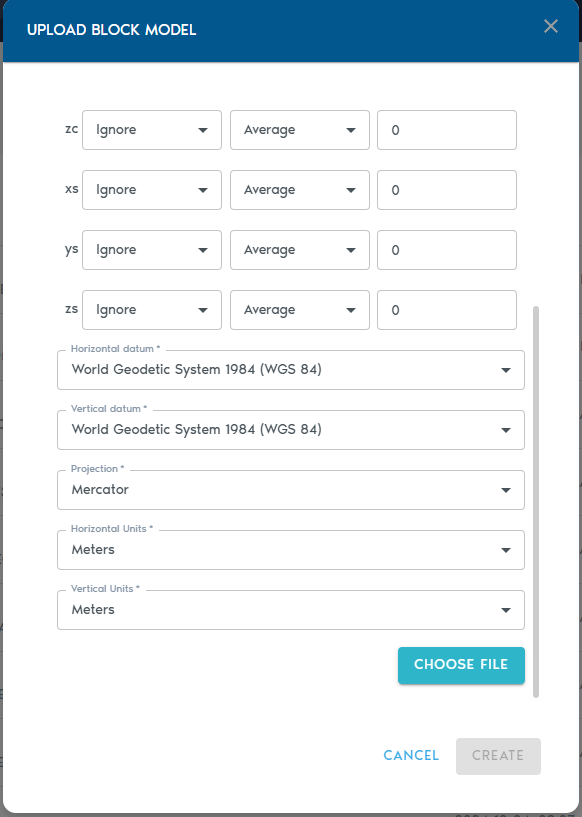
3. Fill out the following fields:
|
Field |
Description
|
|
Item Name |
A descriptive name for the new block model entity. |
|
Capture Date |
(Optional) The original date the model data was captured.
|
|
CSV Header |
A comma-separated line of headers that define how each column in the block model should be interpreted. (Details below.)
|
|
Horizontal Datum |
The horizontal reference system used in the model. |
|
Vertical Datum |
The vertical reference system used for elevation values.
|
|
Projection |
The map projection used in the dataset.
|
|
Horizontal Units |
Units for X and Y coordinates (e.g., meters, feet).
|
|
Vertical Units |
Units for Z coordinates (e.g., meters, feet). |
CSV Header
The CSV Header field defines how each column in your file should be interpreted. For example, a header line like:
XC,YC,ZC,XL,YL,ZL,AU,CU
…will produce a list of Column Definitions for each value, allowing you to specify their role in the model.
|
|
|
Column Types
Each column must be assigned a Type, which tells the system how to process it:
|
Type |
Purpose
|
|
Ignore |
Exclude this column from processing.
|
|
Set |
The column contains a small set of repeating categorical values. |
|
Value |
Numeric values (e.g., grades, densities).
|
|
Block Centroid X/Y/Z |
Coordinates for the block’s center point.
|
|
Block Origin X/Y/Z |
Coordinates for the block’s origin corner.
|
|
Block Dimension X/Y/Z |
Size of the block along each axis.
|
Note: You must choose either block centroids or block origins for positioning—not both. Using both will result in an input error.
Level of Detail (LOD) Aggregation
Each numeric column (e.g., grades or quantities) can also be configured with a Level of Detail (LOD) operation, which determines how values are aggregated in lower-resolution views:
|
LOD Option |
Description
|
|
Average |
Average of all higher-resolution values.
|
|
Min |
Minimum value from the finer data.
|
|
Max |
Maximum value from the finer data.
|
|
Add |
Sum of all values (ideal for counters).
|
|
Multiply |
Product of all values. |
Uploading the File
- Click “Choose File” to upload your block model file (CSV or TXT format).
- You may also upload a ZIP archive that contains your ASCII file.
Click “Create” to start the upload process. You can monitor the progress in the project’s “Pending” section.
Mesh (Raw Data)
A Mesh entity stores raw 3D surface geometry, such as terrain models, structural designs, or scanned objects. VoxelSpace currently supports mesh uploads in the FBX and OBJ formats.
→ Useful for infrastructure, CAD designs, and high-detail scanned models.
Uploading a Mesh
- In your project’s Catalog, click “Add Object.”
- Select “Mesh” from the dropdown menu.
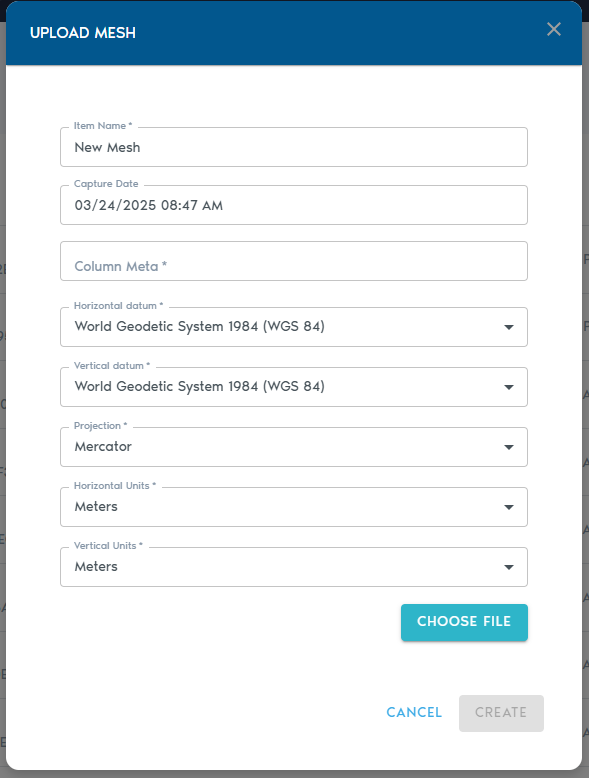
3. Fill in the required metadata fields:
|
Field |
Description
|
|
Item Name |
A clear, descriptive name for the mesh entity.
|
|
Capture Date |
(Optional) The date the mesh was captured or created.
|
|
Horizontal Datum |
The horizontal reference system used in the mesh.
|
|
Vertical Datum |
The vertical reference system used for elevation.
|
|
Projection |
The coordinate projection applied to the dataset.
|
|
Horizontal Units |
Units for X and Y coordinates (e.g., meters or feet).
|
|
Vertical Units |
Units for Z coordinates (e.g., meters or feet). |
Note: The system assumes that all vertex coordinates in the mesh are already aligned with the project’s coordinate space. For this reason, it does not require separate transformation or alignment settings during upload.
Uploading Files
- Click “Choose File” to select your .FBX or .OBJ mesh file.
- You may also upload a ZIP archive containing the mesh and any associated assets (e.g., textures).
Indexed Mesh (Processed)
An Indexed Mesh is a processed version of a raw Mesh entity that has been spatially indexed according to the project’s coordinate system. This allows the mesh to be efficiently visualized and combined with other spatial datasets within VoxelSpace.
Creating an Indexed Mesh
- In your project’s Catalog, click “Add Object.”
- Select “Indexed Mesh” from the dropdown menu.
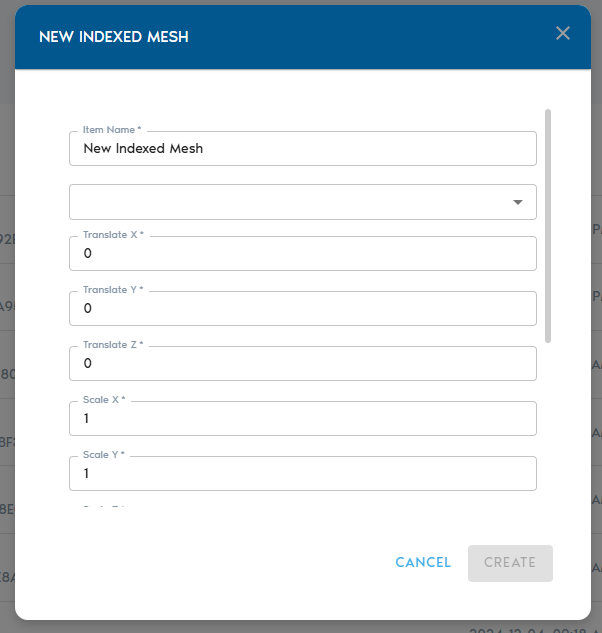
3. Complete the following fields:
|
Field |
Description
|
|
Item Name |
A readable name for the new Indexed Mesh entity.
|
|
Source Mesh |
Choose a raw Mesh entity from the list. This is the base mesh that will be indexed.
|
|
Translate X/Y/Z |
Enter values to move (translate) the mesh along the X, Y, or Z axis.
|
|
Scale X/Y/Z |
Apply scaling factors to each axis. A value of 1.0 maintains the original scale.
|
|
Rotate X/Y/Z |
Specify Euler rotation angles (in degrees) around each axis.
|
|
Rotation Order |
Define the sequence in which the Euler rotations are applied (e.g., XYZ, ZYX). |
Finalizing the Process
Once all parameters are set:
- Click “Create” to start the indexing operation.
- The system will process the mesh and generate a spatially indexed version. You can monitor the status in the project’s “Pending” section.
Viewing the Indexed Mesh
After processing is complete:
- Click the “View” button next to the Indexed Mesh entry in your project’s catalog to open it.
- Alternatively, create a View entity and assign the Indexed Mesh as its source dataset to incorporate it into a broader visualization.
Indexed Point Cloud (Processed)
An Indexed Point Cloud is a spatially-processed version of a raw Point Cloud entity. By applying the project’s spatial index, this format enables fast visualization, filtering, and integration with other spatial datasets in VoxelSpace.
Creating an Indexed Point Cloud
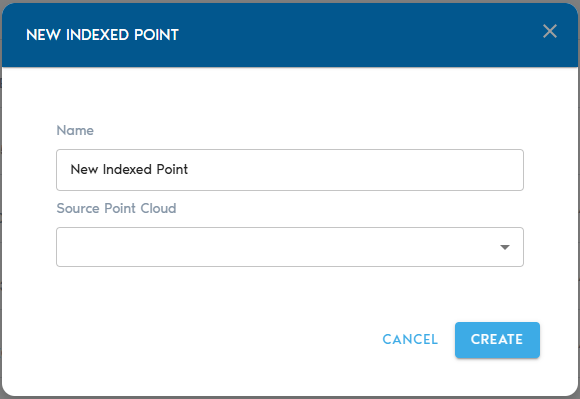
3. Complete the required fields:
|
Field |
Description |
|
Item Name |
A clear, descriptive name for the new Indexed Point Cloud entity. |
|
Source Mesh |
Select a raw Point Cloud from the list. This will serve as the input for the indexing process. |
Indexing the Point Cloud
- After selecting your source and providing a name, click “Create” to initiate the indexing process.
- You can monitor the progress in the project’s “Pending” section.
Viewing the Indexed Point Cloud
Once processing is complete:
- Use the “View” button next to the Indexed Point Cloud in the Catalog to open and explore it.
- Alternatively, you can create a View entity and designate the Indexed Point Cloud as its data source for broader analysis and visualization.
Voxel Point Cloud (Processed)
A Voxel Point Cloud entity transforms a collection of spherical point cloud captures—often from mobile or static LiDAR devices—into a unified, volumetric voxel model. This format is ideal for analyzing spatial density and structure within 3D environments.
Transform spherical point cloud captures into a single volumetric voxel model, useful for dense interior or tunnel scans.
→ Enables volume-based analysis and structure identification.
Creating a Voxel Point Cloud
- In your project’s Catalog, click the “Add Object” button and select “Voxelized Points” from the dropdown menu.
|
|
|
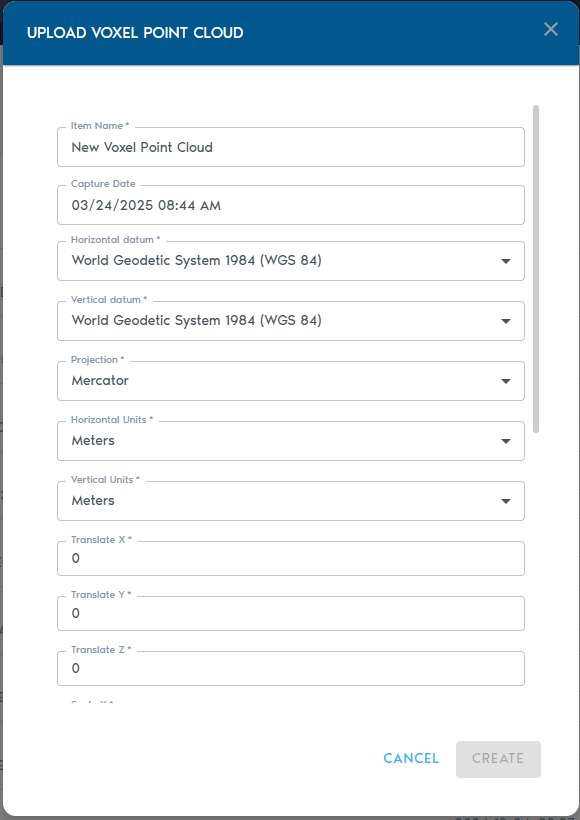
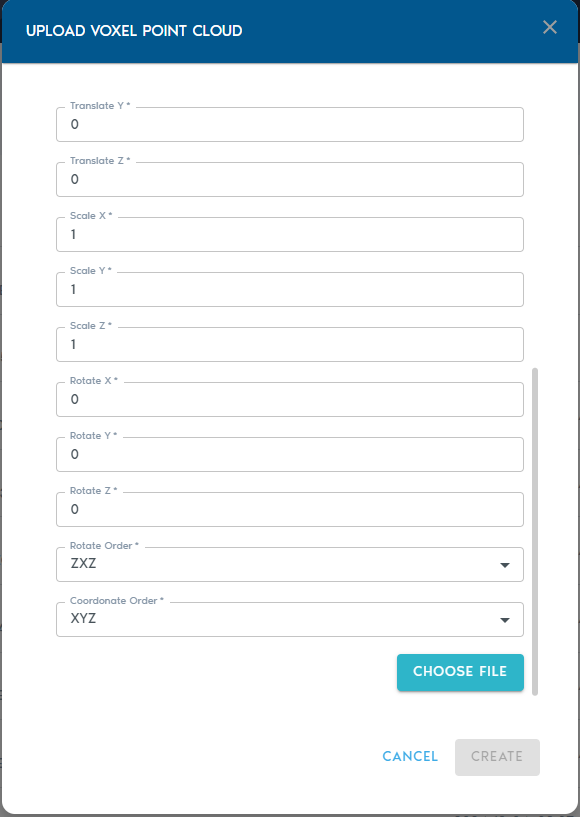
2. Fill in the following metadata:
|
Field |
Description
|
|
Item Name |
A clear, descriptive name for the new entity.
|
|
Capture Device |
(Optional) A label identifying the capture device (e.g., “Riegl VZ-400i”, “Mobile LiDAR”).
|
|
Capture Date |
(Optional) The original date of data collection.
|
|
Horizontal Datum |
The horizontal reference system used in the point cloud data.
|
|
Vertical Datum |
The vertical reference system for elevation values.
|
|
Projection |
The spatial projection used for the dataset.
|
|
Horizontal Units |
Units for horizontal coordinates (e.g., meters, feet).
|
|
Vertical Units |
Units for vertical coordinates.
|
|
Translate X/Y/Z |
Adjusts the position of the model along each axis.
|
|
Scale X/Y/Z |
Rescales the model; a value of 1.0 retains the original size.
|
|
Rotate X/Y/Z |
Applies rotation (in degrees) around each axis using Euler angles.
|
|
Rotation Order |
Defines the sequence in which rotations are applied (e.g., XYZ, ZYX). |
Uploading the Data
- Click “Choose Files” to upload your point cloud data.
- Each file must be a comma-separated list of XYZ values, where:
- The first entry in the file represents the location of the scanning device
- All subsequent entries are points captured from that location
You may select and upload multiple files in a single batch.
Finalizing the Upload
Click “Create” to start the voxelization and upload process.
You can monitor progress in the “Pending” section of the project interface.
Once complete, the voxel model will be available for viewing and integration within your project.
Voxel Terrain (Processed)
A Voxel Terrain entity represents a fully volumetric terrain surface. Unlike mesh-based terrain, this format captures both surface continuity and sub-surface volume, making it ideal for detailed rendering and volumetric analysis—such as detecting changes in terrain over time.
Voxel Terrain entities can be generated from point clouds and heightmaps, and they may also include associated Ortho-Imagery, whether supplied by the user or auto-generated during import.
Generate continuous voxel-based terrain models from point clouds or heightmaps. Supports integration with ortho-imagery and computed normals.
→ Ideal for topographic visualization and volume change detection.
Creating a Voxel Terrain
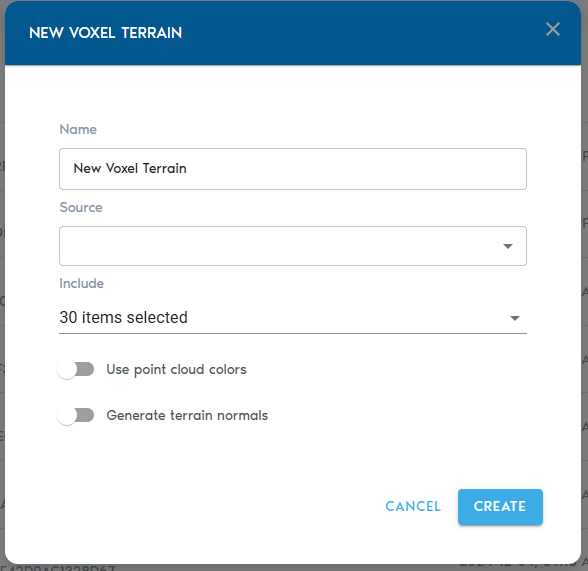
3. Fill in the configuration fields:
|
Field |
Description
|
|
Item Name |
A descriptive name for the new terrain entity.
|
|
Source |
Select one or more Point Cloud or Heightmap entities to be used as the base for the terrain.
|
|
Include (Point Cloud only) |
Choose which point classifications to include in the terrain model. By default, all points are used.
|
|
Ortho-Imagery |
Select one or more Ortho-Imagery entities to be draped over the terrain. These can be aerial photos or computed textures.
|
|
Detail Recovery – Use Point Cloud Colors |
If selected, the system will use RGB values from point clouds (if available) to generate an Ortho-Imagery set automatically.
|
|
Detail Recovery – Generate Terrain Normals |
Requests the system to generate a high-frequency elevation detail set in the form of a normal map, enhancing terrain realism. |
Finalizing and Viewing
- Click “Create” to start the voxelization and processing workflow.
- Progress can be monitored in the project’s “Pending” section.
Once processing is complete:
- Click “View” next to the Voxel Terrain entity in the Catalog to open it directly.
- Alternatively, create a View entity and set the Voxel Terrain as its source to include it in a broader visualization.
Voxel Block Model (Processed)
A Voxel Block Model is the spatially indexed version of a raw Block Model entity. Once voxelized, the block model can be visualized in 3D, dynamically queried, and integrated with other spatial datasets in the project—making it ideal for analysis, comparison, and reporting.
Voxelize a raw block model for real-time visualization, spatial querying, and data integration.
→ Enables advanced visual analytics and dataset fusion.
Creating a Voxel Block Model
|
|
|
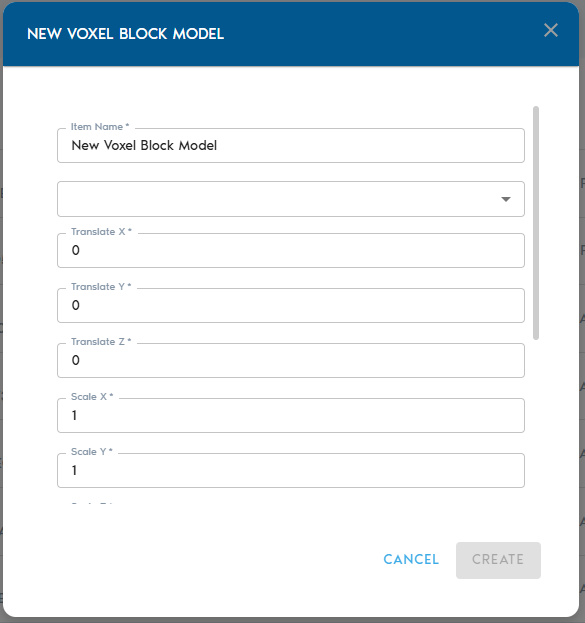
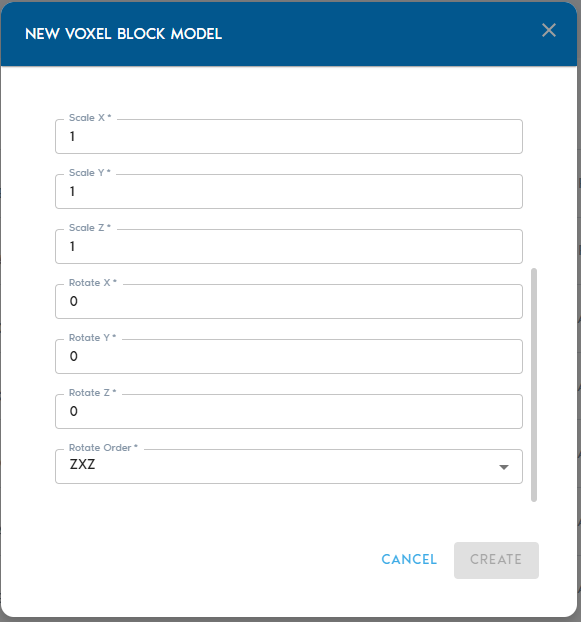
3. Fill out the following configuration fields:
|
Field |
Description
|
|
Item Name |
A readable, descriptive name for the new voxelized block model.
|
|
Source |
Select a raw Block Model entity from the list. This will be used as the input for voxelization.
|
|
Translate X / Y / Z |
Move the model along each axis by the specified value.
|
|
Scale X / Y / Z |
Scale the model along each axis. A value of 1.0 maintains the original size.
|
|
Rotate X / Y / Z |
Apply Euler rotation angles (in degrees) around the X, Y, and Z axes.
|
|
Rotation Order |
Specify the sequence in which rotations are applied (e.g., XYZ, ZYX). |
Finalizing the Process
- Once all parameters are configured, click “Create” to begin the voxelization process.
- You can monitor progress in the “Pending” section of the project dashboard.
Viewing the Voxel Block Model
After processing is complete:
- Click the “View” button next to the entity in the Catalog to explore it in 3D.
- Alternatively, create a View entity and assign the voxelized block model as its source dataset for integration with other spatial layers.
Program
A Program entity stores custom Python code within a project. These scripts allow you to automate tasks, generate volumetric data, perform spatial analysis, or control visual representations of datasets.
Add custom Python scripts that serve as generators, report engines, or view composers.
→ Supports automation, data extraction, and interactive visual logic.
Types of Program Entities
There are three supported program types in VoxelSpace:
- Voxel Generator
Used to create custom volumetric objects through procedural generation. These scripts can be applied in Voxel Generator entities.
For more details, refer to the Voxel Generator Programs section.
- Report
Executes code over a defined spatial region to collect, analyze, and summarize spatial data. Ideal for inspections, calculations, and data extraction.
See the Report Programs section for more information.
- View
Controls how multiple datasets are rendered on screen. This allows for custom visual compositions or dynamic visual layers.
Learn more in the View Programs section.
Creating a Program Entity
- Go to your project’s Catalog section.
- Click “Add Object” and select “Program” from the list.
- Enter the following information:
|
Field |
Description
|
|
Program Name |
A readable, descriptive name for the program.
|
|
Type |
Select the program type: Voxel Generator, Report, or View.
|
|
Code |
Paste or write your custom Python code for the selected purpose. |
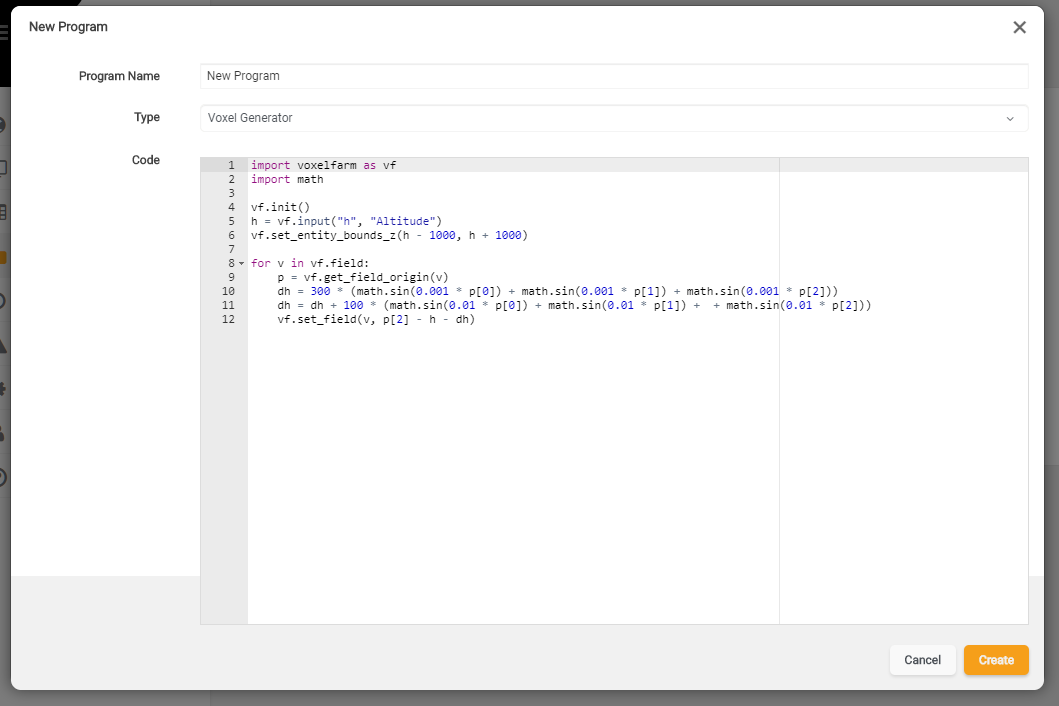
Once saved, your Program entity will be available for use in corresponding entity types depending on its category.
View
A View entity stores a pre-configured visualization composed of one or more spatial datasets. Views allow team members to quickly share meaningful scenes, insights, and spatial analyses across a project.
Why Use Views?
To learn how to create a new View, please refer to the Creating a View section.
Report
A Report entity stores the output generated by running a custom report program across one or more spatial datasets within a defined region of a project.
Key Uses for Reports:
- Volume change calculations
- Material distribution summaries
- Geospatial audits and compliance checks
- Custom analytics over selected project regions
Each report is created by executing a Python-based report program against a specified region and source dataset(s).
To learn how to create a new Report, please refer to the Creating a Report section.
Data Export
The VoxelSpace platform provides a user-friendly way to export spatial data in standard formats for use outside the system. The Export entity is used to define and execute an export job, and it also stores the results for later download.
Creating a Data Export
- In your project’s Catalog, click “Add Object” and select “Voxel Generator.” (This is the current interface label for launching export jobs.)
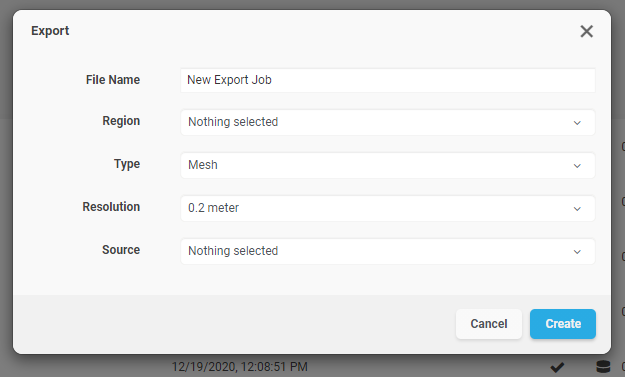
3. Complete the configuration fields:
|
Field |
Description
|
|
File Name |
A readable name for the export job. This will also be used as the exported file name when downloaded.
|
|
Region |
Select the region of interest from the list of available project regions. This defines the spatial area for the export.
|
|
Type |
Choose the data format for export: <ul><li>Mesh – Exports surface data as an .OBJ file</li><li>Points – Exports point cloud data as a .CSV file</li><li>Raster – Exports ortho-imagery as .TIFF with accompanying .TFW (world file)</li></ul>
|
|
Resolution |
Choose the resolution level for the export. You may export at full (1:1) density or select a lower resolution depending on your use case.
|
|
Source |
Select the dataset to be exported. This option is context-sensitive and will show compatible sources based on the selected export type. |
Running and Downloading the Export
- Click “Create” to initiate the export process.
- You can monitor the export status in the project’s “Pending” section.
- Once processing is complete, go to the Project Catalog and click the “Download” button next to the Export entity to retrieve your data.
Heightmap (DEM)
A heightmap entity is a special type of Ortho-Imagery set where images describe altitude instead of color. The images for these sets must be in 16bit grayscale PNG format.
Once you select “Heightmap” from the “Add” menu, you will see the following options:
|
Item Name |
A readable name for the new entity |
|
Minimum Height |
Elevation value for black pixels in the heightmap |
|
Maximum Height |
Elevation value for white pixels in the heightmap |
|
Capture Device |
An optional string to identify capture device |
|
Capture Date |
An optional field containing the original capture date |
|
Horizontal Datum |
The horizontal datum used in the heightmap |
|
Vertical Datum |
The vertical datum used in the heightmap |
|
Projection |
The projection used by the heightmap |
|
Horizontal Units |
The horizontal unit type used in the heightmap |
|
Vertical Units |
The vertical unit type used in the heightmap |
Click “Choose Files” to select which files to upload as the Ortho-Imagery set. Each image in the set is expected to have a matching world registration file. The following table lists the supported image formats and the expected world file extension for the format:
|
Image Format Extension |
Expected World File Extension |
|
.PNG (16bit grayscale) |
.PGW |
You can also select multiple archive ZIP files, which should contain the image and matching world registration files.
Click on “Create” to begin the upload process. You can track the upload operation from the “Pending” section in the project’s page.