# Submitting .Net Lambdas
The platform allows users to run Spatial Lambdas that are compiled as standard .Net assemblies.
Currently, .Net assemblies are supported only for REPORT programs. GENERATOR and VIEW programs must still be created using Python.
Spatial operations using .Net assemblies see a performance increase over 30 times compared to an equivalent workload running in Python.
##### Creating the assembly
In order to create a .Net assembly, the developer will follow these steps:
1. Create a .Net Standard Class Library project
2. Add the .Net VoxelFarmClientLibrary to the project
3. Create a class in the Library that implements the desired Spatial Lambda interface (for instance IVoxelFarmReportLambda)
4. Compile the assembly into a DLL, if necessary, package the DLL and dependencies into a ZIP file
##### Creating/updating the PROGRAM entity
Before running the Spatial Lambda, the user must create a PROGRAM entity that contains the .Net assembly for the Lambda code.
The user can choose between two options when it comes to creating the new entity:
##### 1. Using the admin Web UI:
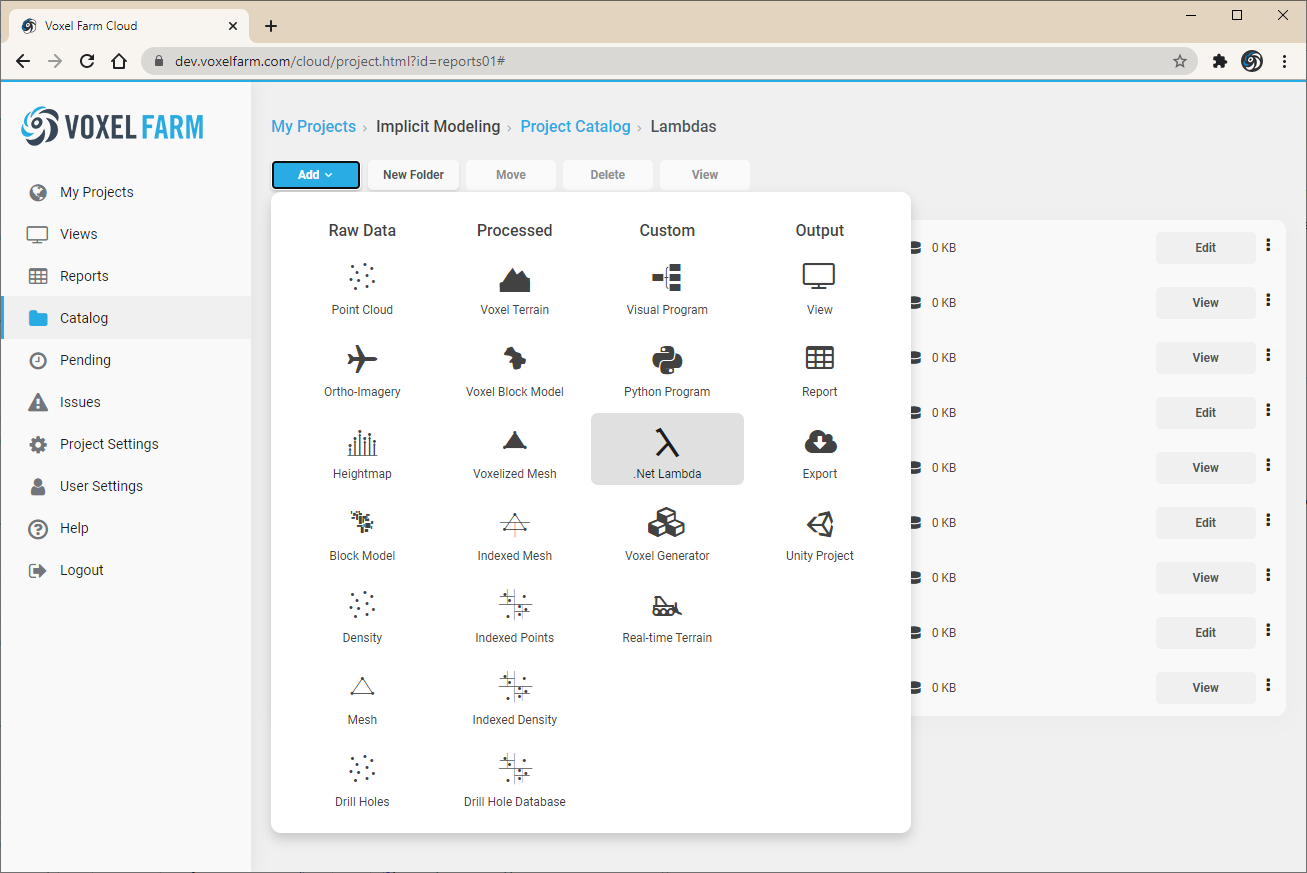
First, select Add > .Net Lambda from the Catalog section in the UI:
Provide a name for the program, and information about the Lambda class that will be used as entrypoint:
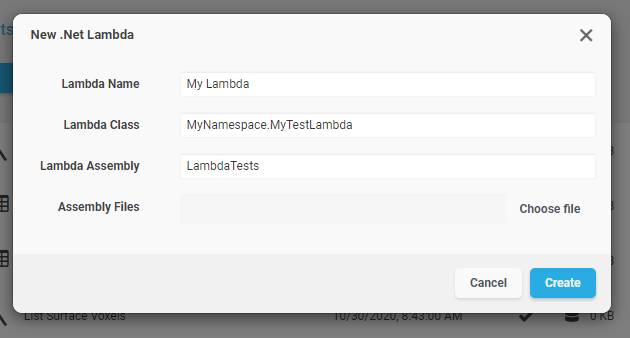
Click on "Choose file" to select one or multiple files that will be associated to the Spatial Lambda.
Once the use clicks on "Create", the platform validates the code and discovers which inputs the Lambda expects. From this point on, the Lambda is available for running as a spatial report.
##### 2. Using the REST API:
The user can create and validate a new PROGRAM entity by making this sequence of REST calls:
1. Create a PROGRAM entity, specifying "NETASM" in the code\_origin property. See the [Triggering Reports](https://help.mystart.com/books/developer-manual/page/triggering-reports "Triggering Reports") example to see how this is performed for a Python program.
2. Upload the assembly files as an attachment to the entity. See the [Uploading Entity Files](https://help.mystart.com/books/developer-manual/page/uploading-entity-files "Uploading Entity Files") section.
3. Request the system to process the new program. This is so the platform can discover which inputs this program will require later, once it is ran by users. See the [Triggering Reports](https://help.mystart.com/books/developer-manual/page/triggering-reports "Triggering Reports") topic for more information on how to trigger a processing job.