Rest Interface - Advanced REST calls
- Triggering Jobs
- Triggering Reports
- Triggering Export Jobs
- Getting Program Inputs
- Validating a Program
- Creating Views
- Adding Users to Projects
Triggering Jobs
A typical project will require to process raw files into spatially indexed datasets. This process takes one or more raw data entities and produces a new type of entity. In other cases, the system will use information already stored in the spatial storage to create additional entities. Some examples of this are:
- Raw point clouds used to create voxel terrains
- Heightmap raster sets used to create voxel terrains
- Block model in CSV format used to create a voxelized block model
- A report created out of multiple indexed datasets
- A high-resolution mesh exported from a mashup of datasets
Entities that require further processing will be created with its “state” property set to “PARTIAL”.
It is possible to use the REST API to trigger the processing of the entity so its state transitions from “PARTIAL” to “COMPLETE”.
These processes are time-consuming so the REST request returns immediately. The interface allows to register a callback URL. Upon completion, the system will try to deliver the notification for a configurable number of attempts. Instead of using a callback, the application using the REST interface also has the option to poll the entity state for completeness. This is doing by verifying the “state” property of the entity has switched from “PARTIAL” to either “COMPLETE” or “ERROR”.
Method
POST
URL
<server>/events.ashx
Parameters
|
id |
Unique identifier for the entity |
|
project |
Unique identifier for the project |
|
org |
Organization ID |
Post Payload
Multi-part form data containing two fields:
|
process |
A string identifying this request to a later callback |
|
callback |
A URL that will be called when the job has completed. This is an optional parameter. The URL is opaque to the system, but must contain two placeholders:
For example: http://myserver.mysite.com?mytoken=VF_PROCESS&id=VF_ID&myoutcome=VF_RESULT_CODE |
Result Error Codes
|
0 |
Operation was successful |
|
1 |
Entity not found |
|
2 |
Unknown error |
|
3 |
Error processing report |
|
4 |
Image creation failed |
|
5 |
Mesh creation failed |
|
6 |
Point cloud creation failed |
|
7 |
Could not index point cloud |
|
8 |
Could not index mesh |
|
9 |
Could not process block model |
|
10 |
Could not process voxel terrain model |
|
11 |
Could not ingest raw point cloud |
|
12 |
Could not ingest DEM (Heightmap) |
|
13 |
Could not produce Unity project |
|
14 |
Could not export density data |
|
15 |
Could not process density data |
|
16 |
Could not index block model |
|
17 |
Could not process material layer request |
Returns
If completed (200 code), this call returns a JSON object that describes the result of the operation:
{"result" : "success"}
Example (PowerShell)
This POST call triggers the processing of an entity:
| Invoke-WebRequest -Uri "http://localhost:58697/events.ashx?project=myproject&id=4E40F10BD7C74A77AE1E4CC163F3EA98&org=2343243456678890" -Method "POST" -Headers @{"Origin"="http://localhost:58697"; "Accept-Encoding"="gzip, deflate, br"; "Accept-Language"="en-US,en;q=0.9,es;q=0.8"; "User-Agent"="Mozilla/5.0 (Windows NT 10.0; Win64; x64) AppleWebKit/537.36 (KHTML, like Gecko) Chrome/73.0.3683.103 Safari/537.36"; "Accept"="*/*"; "Referer"="http://localhost:58697/cloud/project.html?id=myproject"} -ContentType "multipart/form-data; boundary=----WebKitFormBoundaryRADf50WY1KjKrmUF" -Body ([System.Text.Encoding]::UTF8.GetBytes("------WebKitFormBoundaryRADf50WY1KjKrmUF$([char]13)$([char]10)Content-Disposition: form-data; name=`"process`"$([char]13)$([char]10)$([char]13)$([char]10)IMPORT_VOXSURF$([char]13)$([char]10)------WebKitFormBoundaryRADf50WY1KjKrmUF--$([char]13)$([char]10)")) |
Triggering Reports
Reports, like some other entities, require to be processed in order to have their data ready for use. The processing of a report is triggered in the same fashion as any other processed entity, which is the subject of the previous section.
Before processing a report, the report entity must be properly configured. This section will cover how to set up a report using the REST interface.
To successfully set up a report entity, it is necessary to:
- Define which report program will be used
- Provide values to the program’s inputs
- Define a 3D region where the report will run
- The Report Program Entity
A report entity will obtain its data by running a Python program or a .Net assembly over a custom mashup of spatial datasets. It is up to the report code to decide which inputs will be used and how the data will be interpreted.
In order to set up a report entity, it is necessary to have a report program entity. The program entity holds the Python program, and it can be used to create many different report entities, each one containing the results of a different run of the same program, but with different input choices.
If there is no program entity yet, one must be created with the following properties:
|
code_origin |
Contains the type of code used by the program. Currently, two types are supported:
|
|
code |
If code_origin is "PYTHON", this property contains the Python code for the program, in Base64 format. If code_origin is "NETASM", this property identifies the entry-point class for the Lambda program in the form: <FullyNamespacedClassName>:<DLLName> |
|
program_type |
Contains the type of the program. The program type can be one of the following:
|
For Python programs, the supplied Python code can be validated by making an additional REST call. See the Validating a Program section.
For .Net assemblies, the entity must be sent for processing so the platform can verify the supplied code. See the Triggering Jobs section for information on how to start the processing of the program entity.
The entity creation request will return the ID of the report program in the system. This ID will be later used to set up the report entity.
Providing input values
In most cases a report program will request input from the user. In the context of a REST call, it may not be possible to prompt the user for any information, so it is up to the REST caller to supply the values the report program expects. This requires knowledge of which inputs the report program expects.
The report program may call any of the Voxel Farm Python interface functions to ask for input. These functions are:
|
voxelfarm.input(id, …) |
Requests a numeric value |
|
voxelfarm.input_string(id, …) |
Requests a string |
|
voxelfarm.input_date(id, …) |
Requests a date/time |
|
voxelfarm.input_entity(id, …) |
Requests the unique ID of an existing entity in the project |
|
voxelfarm.input_attributes(id, …) |
Requests an attribute set for an existing entity |
|
voxelfarm.input_query(id, …) |
Requests a filter query for an existing entity |
When using the .Net assembly interface, the input functions follow the same pattern. The same rules apply.
The first parameter in every call is an alphanumeric identifier. This identifier is used to store the input value in the entity model. If caller of the REST interface is aware of the calls made by the program requesting input, for each call to an input function, a property must be added to the report entity containing the value for the input.
|
input_value_#id# |
Contains the value for the input. Replace the #id# placeholder by the actual id used by the input. |
|
input_label_#id# |
Contains the label for the input. Replace the #id# placeholder by the actual id used by the input. |
|
input_type_#id# |
Specifies type of the input. Replace the #id# placeholder by the actual id used by the input. The possible input types are: 0 – Numeric 1 – Date 2 – String 3 – Entity 4 – Attribute Set 5 – Query Expression 6 – Boolean (Checkbox) 7 – Color Legend 8 – Drill-hole Settings |
|
input_filter_#id# |
For Specifies type of the input. Replace the #id# placeholder by the actual id used by the input. Must be non-zero for type 3 (Entity), contains a numeric value containing a binary mask identifying which types of entities can be potentially selected. Use binary OR to merge different types into a single mask. The values identifying each identity type are (in hexadecimal): 0x01 – Voxel Terrain 0x02 – Voxel Block Model 0x04 – Voxel Generator 0x08 – Realtime Voxel Terrain 0x10 – Indexed Point Cloud |
The caller of the REST interface may not be aware of which inputs the report program expects. It is possible to discover the list of inputs by performing an additional REST call. This REST call is covered in the “Getting program inputs” section.
Providing a 3D region
The system currently supports one type of 3D region, which is defined as a horizontal 2D polygon that has been extruded along the vertical dimension.
A region can be expressed in the REST interface as a single string, containing the following format:
1,<min_height>,<max_height>,<polygon_point0_x>, <polygon_point0_y>, <polygon_point1_x>, <polygon_point1_y>, …
The format is a list of numbers separated by commas. The first number must be 1, this identifies this is an extruded polygon region. The second two numbers are world coordinates for the vertical bounds of the region. The following numbers are the X, Y coordinates of each region point. The polygon points are defined in counter-clockwise order.
For example, the following region string defines a 10-unit cube centered in the project’s origin:
1,-5,5,-5, 5,5,5,5,-5,-5,-5
Putting the Report entity together
Once the report program and its inputs are known, it is possible to define all properties required to create the report entity. The following table lists these properties:
|
name |
Set to the readable name of the report. |
|
description |
Set to a textual description of the report. |
|
type |
Must be set to “FILE”. |
|
state |
Set to “PARTIAL” |
|
file_type |
Set to “REPORT” |
|
file_folder |
Set to the ID of the folder that will contain the report. Set to “0” to use the project’s root folder. |
|
program |
Set to the ID of the program entity that contains the report code |
|
lod |
Set to zero. |
|
region |
Set to region string. This is the region where the scope will run. |
|
input_value_#id# |
For each input in the program, se to the value for the input. Replace the #id# placeholder by the actual id used by the input. |
|
input_label_#id# |
For each input in the program, set to the label for the input. Replace the #id# placeholder by the actual id used by the input. |
|
input_type_#id# |
For each input in the program, set to type of the input. Replace the #id# placeholder by the actual id used by the input. The possible input types are: 0 – Numeric 1 – Date 2 – String 3 – Entity 4 – Attribute Set 5 – Query Expression |
|
input_filter_#id# |
Must defined for each input in the program. Replace the #id# placeholder by the actual id used by the input. Must be non-zero for type 3 (Entity), contains a numeric value containing a binary mask identifying which types of entities can be potentially selected. Use binary OR to merge different types into a single mask. The values identifying each identity type are (in hexadecimal): 0x01 – Voxel Terrain 0x02 – Voxel Block Model 0x04 – Voxel Generator 0x08 – Realtime Voxel Terrain 0x10 – Indexed Point Cloud |
The next step is to create the entity using the values defined above. See the “Creating an entity” section for instruction on how to perform this operation.
Right after it is created, the report entity will be in unprocessed state. To trigger the report’s processing, follow the steps outlined in the “Triggering jobs” section.
Report example
This example will use the REST interface to create a report that computes the volume of a large sphere. Both the report and the sphere will be Python programs. This example does not rely on any external data or entities that may already exist in the project.
This is the Python code for the sphere object:
import voxelfarm as vf
import math
vf.init()
x = vf.input("x", "Sphere Center X")
y = vf.input("y", "Sphere Center Y")
z = vf.input("z", "Sphere Center Z")
r = vf.input("r", "Sphere Radius")
vf.set_entity_bounds_x(x - r, x + r)
vf.set_entity_bounds_y(y - r, y + r)
vf.set_entity_bounds_z(z - r, z + r)
for v in vf.field:
    p = vf.get_field_origin(v)
    dx = x - p[0]
    dy = y - p[1]
    dz = z - p[2]
    d = math.sqrt(dx * dx + dy * dy + dz * dz)
    vf.set_field(v, d - r)
This program must be converted to Base64 before it can be stored as a Program entity:
| aW1wb3J0IHZveGVsZmFybSBhcyB2ZgppbXBvcnQgbWF0aAoKdmYuaW5pdCgpCgp4ID0gdmYuaW5wdXQoIngiLCAiU3BoZXJlIENlbnRlciBYIikKeSA9IHZmLmlucHV0KCJ5IiwgIlNwaGVyZSBDZW50ZXIgWSIpCnogPSB2Zi5pbnB1dCgieiIsICJTcGhlcmUgQ2VudGVyIFoiKQpyID0gdmYuaW5wdXQoInIiLCAiU3BoZXJlIFJhZGl1cyIpCgp2Zi5zZXRfZW50aXR5X2JvdW5kc194KHggLSByLCB4ICsgcikKdmYuc2V0X2VudGl0eV9ib3VuZHNfeSh5IC0gciwgeSArIHIpCnZmLnNldF9lbnRpdHlfYm91bmRzX3ooeiAtIHIsIHogKyByKQoKZm9yIHYgaW4gdmYuZmllbGQ6CiAgICBwID0gdmYuZ2V0X2ZpZWxkX29yaWdpbih2KQogICAgZHggPSB4IC0gcFswXQogICAgZHkgPSB5IC0gcFsxXQogICAgZHogPSB6IC0gcFsyXQogICAgZCA9IG1hdGguc3FydChkeCAqIGR4ICsgZHkgKiBkeSArIGR6ICogZHopCiAgICB2Zi5zZXRfZmllbGQodiwgZCAtIHIpCg== |
The following REST call creates the Program entity for the sphere:
| Invoke-WebRequest -Uri "http://localhost:58697/entity.ashx?project=myproject" -Method "POST" -Headers @{"Origin"="http://localhost:58697"; "Accept-Encoding"="gzip, deflate, br"; "Accept-Language"="en-US,en;q=0.9,es;q=0.8"; "User-Agent"="Mozilla/5.0 (Windows NT 10.0; Win64; x64) AppleWebKit/537.36 (KHTML, like Gecko) Chrome/73.0.3683.103 Safari/537.36"; "Accept"="*/*"; "Referer"="http://localhost:58697/cloud/project.html?id=myproject"} -ContentType "application/json; charset=UTF-8" -Body "{`"name`":`"Sphere`",`"type`":`"FILE`",`"state`":`"COMPLETE`",`"code`":`"aW1wb3J0IHZveGVsZmFybSBhcyB2ZgppbXBvcnQgbWF0aAoKdmYuaW5pdCgpCgp4ID0gdmYuaW5wdXQoIngiLCAiU3BoZXJlIENlbnRlciBYIikKeSA9IHZmLmlucHV0KCJ5IiwgIlNwaGVyZSBDZW50ZXIgWSIpCnogPSB2Zi5pbnB1dCgieiIsICJTcGhlcmUgQ2VudGVyIFoiKQpyID0gdmYuaW5wdXQoInIiLCAiU3BoZXJlIFJhZGl1cyIpCgp2Zi5zZXRfZW50aXR5X2JvdW5kc194KHggLSByLCB4ICsgcikKdmYuc2V0X2VudGl0eV9ib3VuZHNfeSh5IC0gciwgeSArIHIpCnZmLnNldF9lbnRpdHlfYm91bmRzX3ooeiAtIHIsIHogKyByKQoKZm9yIHYgaW4gdmYuZmllbGQ6CiAgICBwID0gdmYuZ2V0X2ZpZWxkX29yaWdpbih2KQogICAgZHggPSB4IC0gcFswXQogICAgZHkgPSB5IC0gcFsxXQogICAgZHogPSB6IC0gcFsyXQogICAgZCA9IG1hdGguc3FydChkeCAqIGR4ICsgZHkgKiBkeSArIGR6ICogZHopCiAgICB2Zi5zZXRfZmllbGQodiwgZCAtIHIpCg==`",`"program_type`":`"VOXEL`",`"file_type`":`"PROGRAM`",`"file_size`":`"0`",`"file_date`":`"1557157137959`",`"file_folder`":`"0`"}" |
The server returns the ID of the newly created program:
{"result" : "success", "id" : "03318353117A40D6AA8B6C09A85A1060"}
In a similar fashion, it is necessary to create a program entity for the report. The following report program computes the volume of an object:
import voxelfarm as vf
entity = vf.input_entity("entity1", "Entity", vf.type.voxel_terrain | vf.type.voxel_generator)
voxels = vf.load_voxels(entity, vf.attribute.volume, None)
volume = 0.0
for v in vf.voxels:
    volume += vf.get_volume(voxels, v)
sum = vf.start_sum("Item", "Object Volume")
vf.sum(sum, volume)
This program must be converted to Base64 before it can be stored as a Program entity:
| aW1wb3J0IHZveGVsZmFybSBhcyB2ZgplbnRpdHkgPSB2Zi5pbnB1dF9lbnRpdHkoImVudGl0eTEiLCAiRW50aXR5IiwgdmYudHlwZS52b3hlbF90ZXJyYWluIHwgdmYudHlwZS52b3hlbF9wcm9ncmFtKQp2b3hlbHMgPSB2Zi5sb2FkX3ZveGVscyhlbnRpdHksIHZmLmF0dHJpYnV0ZS52b2x1bWUsIE5vbmUpCnZvbHVtZSA9IDAuMApmb3IgdiBpbiB2Zi52b3hlbHM6CiAgICB2b2x1bWUgKz0gdmYuZ2V0X3ZvbHVtZSh2b3hlbHMsIHYpCnN1bSA9IHZmLnN0YXJ0X3N1bSgiSXRlbSIsICJPYmplY3QgVm9sdW1lIikKdmYuc3VtKHN1bSwgdm9sdW1lKQo= |
The following REST call creates the program entity for the report:
| Invoke-WebRequest -Uri "http://localhost:58697/entity.ashx?project=myproject" -Method "POST" -Headers @{"Origin"="http://localhost:58697"; "Accept-Encoding"="gzip, deflate, br"; "Accept-Language"="en-US,en;q=0.9,es;q=0.8"; "User-Agent"="Mozilla/5.0 (Windows NT 10.0; Win64; x64) AppleWebKit/537.36 (KHTML, like Gecko) Chrome/73.0.3683.103 Safari/537.36"; "Accept"="*/*"; "Referer"="http://localhost:58697/cloud/project.html?id=myproject"} -ContentType "application/json; charset=UTF-8" -Body "{`"name`":`"Compute Volume`",`"type`":`"FILE`",`"state`":`"COMPLETE`",`"code`":`"aW1wb3J0IHZveGVsZmFybSBhcyB2ZgplbnRpdHkgPSB2Zi5pbnB1dF9lbnRpdHkoImVudGl0eTEiLCAiRW50aXR5IiwgdmYudHlwZS52b3hlbF90ZXJyYWluIHwgdmYudHlwZS52b3hlbF9wcm9ncmFtKQp2b3hlbHMgPSB2Zi5sb2FkX3ZveGVscyhlbnRpdHksIHZmLmF0dHJpYnV0ZS52b2x1bWUsIE5vbmUpCnZvbHVtZSA9IDAuMApmb3IgdiBpbiB2Zi52b3hlbHM6CiAgICB2b2x1bWUgKz0gdmYuZ2V0X3ZvbHVtZSh2b3hlbHMsIHYpCnN1bSA9IHZmLnN0YXJ0X3N1bSgiSXRlbSIsICJPYmplY3QgVm9sdW1lIikKdmYuc3VtKHN1bSwgdm9sdW1lKQo=`",`"program_type`":`"REPORT`",`"file_type`":`"PROGRAM`",`"file_size`":`"0`",`"file_date`":`"1557157689680`",`"file_folder`":`"0`"}" |
The server returns the ID of the new report program:
{"result" : "success", "id" : "33ED105A348F44DBADB146867B383E71"}
The next step is to create an actual sphere object. The earlier step only created a program that can produce any sphere given some input parameters. In this step, a new entity must be created which links to the sphere program and provides values for the inputs the sphere program expects.
By examining the Sphere program, it can be seen it requests four different inputs:
x = vf.input("x", "Sphere Center X")
y = vf.input("y", "Sphere Center Y")
z = vf.input("z", "Sphere Center Z")
r = vf.input("r", "Sphere Radius")
The inputs are identified by the “x”, “y”, “z” and “r” input identifiers. These identifiers will be used in the next REST call to supply the values expected by the Sphere program.
The following REST request creates a Sphere entity centered at the project’s origin and with a radius of 50 meters:
| Invoke-WebRequest -Uri "http://localhost:58697/entity.ashx?project=myproject" -Method "POST" -Headers @{"Origin"="http://localhost:58697"; "Accept-Encoding"="gzip, deflate, br"; "Accept-Language"="en-US,en;q=0.9,es;q=0.8"; "User-Agent"="Mozilla/5.0 (Windows NT 10.0; Win64; x64) AppleWebKit/537.36 (KHTML, like Gecko) Chrome/73.0.3683.103 Safari/537.36"; "Accept"="*/*"; "Referer"="http://localhost:58697/cloud/project.html?id=myproject"} -ContentType "application/json; charset=UTF-8" -Body "{`"name`":`"My Sphere`",`"type`":`"FILE`",`"state`":`"COMPLETE`",`"program`":`"03318353117A40D6AA8B6C09A85A1060`",`"file_type`":`"VOXGEN`",`"file_size`":`"0`",`"file_date`":`"1557158594400`",`"file_folder`":`"0`",`"input_count`":`"4`",`"input_label_x`":`"Sphere Center X`",`"input_filter_x`":`"0`",`"input_type_x`":`"0`",`"input_value_x`":`"0`",`"input_label_y`":`"Sphere Center Y`",`"input_filter_y`":`"0`",`"input_type_y`":`"0`",`"input_value_y`":`"0`",`"input_label_z`":`"Sphere Center Z`",`"input_filter_z`":`"0`",`"input_type_z`":`"0`",`"input_value_z`":`"0`",`"input_label_r`":`"Sphere Radius`",`"input_filter_r`":`"0`",`"input_type_r`":`"0`",`"input_value_r`":`"50`"}" |
The server returns the ID of the newly created entity:
{"result" : "success", "id" : "060FCABE28CA4E41B46C89B0F65CB57E"}
At this point, all auxiliary entities required to create the report entity are ready. The next steps will be about setting up the actual report entity.
Like the sphere object, creating the report entity will require providing values to the inputs expected by the report program. From inspecting the report code, it can be seen the reports expects one input of type entity:
entity = vf.input_entity("entity1", "Entity", vf.type.voxel_terrain | vf.type.voxel_generator)
This input is identified as “entity1” and it will receive the ID of the sphere entity previously created so the report inspects the data produced by the sphere and gets to compute its volume. The type for this input is set to 3 (Entity) and the filter is set to 5 (Voxel Terrain + Voxel Generator).
The report entity also requires a region string. The following region defines a bounding box that encloses the sphere:
1,-50,50,-50,50,50,50,50,-50,-50,-50
The following REST request creates the report entity:
| Invoke-WebRequest -Uri "http://localhost:58697/entity.ashx?project=myproject" -Method "POST" -Headers @{"Origin"="http://localhost:58697"; "Accept-Encoding"="gzip, deflate, br"; "Accept-Language"="en-US,en;q=0.9,es;q=0.8"; "User-Agent"="Mozilla/5.0 (Windows NT 10.0; Win64; x64) AppleWebKit/537.36 (KHTML, like Gecko) Chrome/73.0.3683.103 Safari/537.36"; "Accept"="*/*"; "Referer"="http://localhost:58697/cloud/project.html?id=myproject"} -ContentType "application/json; charset=UTF-8" -Body "{`"name`":`"Volume of Sphere`",`"type`":`"FILE`",`"state`":`"PARTIAL`",`"program`":`"33ED105A348F44DBADB146867B383E71`",`"file_type`":`"REPORT`",`"file_size`":`"0`",`"file_date`":`"1557161627287`",`"file_folder`":`"0`",`"input_count`":`"1`",`"region`":`"1,-50,50,-50,50,50,50,50,-50,-50,-50`",`"lod`":`"0`",`"input_label_entity1`":`"Entity`",`"input_filter_entity1`":`"5`",`"input_type_entity1`":`"3`",`"input_value_entity1`":`"060FCABE28CA4E41B46C89B0F65CB57E`"}" |
The server returns the ID for the report entity:
{"result" : "success", "id" : "08A1E6851DFD46F3B0EC958D1118A823"}
The last call created a new entity for the report, however the results for the report will not be ready until the report entity has been triggered for processing and the processing is complete.
The following REST request triggers the processing of the report:
| Invoke-WebRequest -Uri "http://localhost:58697/events.ashx?project=myproject&id=08A1E6851DFD46F3B0EC958D1118A823&org=2343243456678890" -Method "POST" -Headers @{"Origin"="http://localhost:58697"; "Accept-Encoding"="gzip, deflate, br"; "Accept-Language"="en-US,en;q=0.9,es;q=0.8"; "User-Agent"="Mozilla/5.0 (Windows NT 10.0; Win64; x64) AppleWebKit/537.36 (KHTML, like Gecko) Chrome/73.0.3683.103 Safari/537.36"; "Accept"="*/*"; "Referer"="http://localhost:58697/cloud/project.html?id=myproject"} -ContentType "multipart/form-data; boundary=----WebKitFormBoundaryZATmyEvaQ9XPOzuY" -Body ([System.Text.Encoding]::UTF8.GetBytes("------WebKitFormBoundaryZATmyEvaQ9XPOzuY$([char]13)$([char]10)Content-Disposition: form-data; name=`"process`"$([char]13)$([char]10)$([char]13)$([char]10)RUN_REPORT$([char]13)$([char]10)------WebKitFormBoundaryZATmyEvaQ9XPOzuY--$([char]13)$([char]10)")) |
This example does not use the callback URL, it will poll until the state of the report entity is set to “COMPLETE”. The following REST request will retrieve the report entity:
| Invoke-WebRequest -Uri "http://localhost:58697/entity.ashx?id=08A1E6851DFD46F3B0EC958D1118A823" -Headers @{"Upgrade-Insecure-Requests"="1"; "User-Agent"="Mozilla/5.0 (Windows NT 10.0; Win64; x64) AppleWebKit/537.36 (KHTML, like Gecko) Chrome/73.0.3683.103 Safari/537.36"; "Accept"="text/html,application/xhtml+xml,application/xml;q=0.9,image/webp,image/apng,*/*;q=0.8,application/signed-exchange;v=b3"; "Accept-Encoding"="gzip, deflate, br"; "Accept-Language"="en-US,en;q=0.9,es;q=0.8"} |
The server will respond with a JSON object that contains all properties for the report:
| {"lod":"0","file_folder":"0","input_type_entity1":"3","input_count":"1","input_filter_entity1":"5","file_type":"REPORT","project":"myproject","name":"Volume of Sphere","state":"PARTIAL","program":"33ED105A348F44DBADB146867B383E71","file_size":"0","partial_progress":"0","region":"1,-50,50,-50,50,50,50,50,-50,-50,-50","ID":"08A1E6851DFD46F3B0EC958D1118A823","file_date":"1557162371543","input_value_entity1":"060FCABE28CA4E41B46C89B0F65CB57E","partial_status":"8,000,000 cubic meter volume analyzed...","type":"FILE","input_label_entity1":"Entity"} |
By inspecting the value of the “state” property, it is possible to determine if the entity has completed processing, and whether any errors may have occurred. When the processing completes, the “state” property will switch to either “COMPLETE” or “ERROR”.
Once the report’s processing has completed, the data generated by the report can be downloaded as a CSV file using the REST API:
|
Invoke-WebRequest -Uri "http://localhost:58697/file.ashx?org=2343243456678890&project=myproject&id=08A1E6851DFD46F3B0EC958D1118A823&filename=report.csv&namehint=Vm9sdW1lb2ZTcGhlcmUuY3N2" -Headers @{"Accept"="*/*"; "Accept-Encoding"="gzip, deflate, br"; "Referer"="http://localhost:58697/cloud/project.html?id=myproject"; "Accept-Language"="en-US,en;q=0.9,es;q=0.8"; "User-Agent"="Mozilla/5.0 (Windows NT 10.0; Win64; x64) AppleWebKit/537.36 (KHTML, like Gecko) Chrome/73.0.3683.103 Safari/537.36"}
|
The contents of the file are:
Item,Object Volume
Item,523605.137331239
At voxel size 0.5m, the report program has computed the volume of the 50m sphere to be: 523,605.137331239 cubic meters. The analytical result for the volume of a 50m sphere is: 523,598.7755983 cubic meters. The error introduced by the discretization of the sphere is 0.0012%
Triggering Export Jobs
Export entities allow to extract information from Voxel Farm Servers into a standard format. Currently, data can be exported in the following formats:
- An .OBJ file containing a mesh
- One or more image tiles in TIF/TFW format
- A CVS file containing a point cloud
Before exporting any data, the export entity must be properly configured. This section will cover how to set up an export job using the REST interface.
To successfully set up an export entity, it is necessary to:
- Define which region of space will be exported
- Define which type of data will be exported
- Define which other entity will provide the data to be exported
Providing a 3D region
The Voxel Farm system currently supports one type of 3D region, which is defined as a horizontal 2D polygon that has been extruded along the vertical dimension.
A region can be expressed in the REST interface as a single string, containing the following format:
1,<min_height>,<max_height>,<polygon_point0_x>, <polygon_point0_y>, <polygon_point1_x>, <polygon_point1_y>, …
The format is a list of numbers separated by commas. The first number must be 1, this identifies this is an extruded polygon region. The second two numbers are world coordinates for the vertical bounds of the region. The following numbers are the X, Y coordinates of each region point. The polygon points are defined in counter-clockwise order.
For example, the following region string defines a 10-unit cube centered in the project’s origin:
1,-5,5,-5, 5,5,5,5,-5,-5,-5
Putting the export entity together
The following table lists the properties that must be set in order to create an export entity:
|
name |
Set to the readable name of the export job. |
|
description |
Set to a textual description of the export job. |
|
type |
Must be set to “FILE”. |
|
state |
Set to “PARTIAL” |
|
file_type |
Set to “EXPORT” |
|
file_folder |
Set to the ID of the folder that will contain the export entity. Set to “0” to use the project’s root folder. |
|
entity |
Set to the ID of the program entity that will provide the data to be exported |
|
lod |
Set to the desired resolution for the exported data. Zero is the highest possible resolution, each subsequent number will decrease the resolution by a factor of two. |
|
region |
Set to region string. |
|
export_type |
Set to the desired type of data. The possible values are:
|
This set of values can be used to create the entity, as described in the “Creating an entity” section. Once the entity is successfully created, the actual export job needs to be triggered. To see how to do so, see the “Triggering jobs” section.
Downloading the exported data
Once the export job completes, it is possible to download the data using the REST interface.
The exported data is always created inside a ZIP archive, and this archive is attached to the export interface using the filename “export.zip”.
The “Getting entity files” section describes how to retrieve a file once its name inside the entity is known.
Export example
This example will use the REST interface to create an export job that produces a mesh for a large sphere. The sphere will be defined as a custom volumetric object using a Python program. This example does not rely on any external data or entities that may already exist in the project.
This is the Python code for the sphere object:
import voxelfarm as vf
import math
vf.init()
x = vf.input("x", "Sphere Center X")
y = vf.input("y", "Sphere Center Y")
z = vf.input("z", "Sphere Center Z")
r = vf.input("r", "Sphere Radius")
vf.set_entity_bounds_x(x - r, x + r)
vf.set_entity_bounds_y(y - r, y + r)
vf.set_entity_bounds_z(z - r, z + r)
for v in vf.field:
    p = vf.get_field_origin(v)
    dx = x - p[0]
    dy = y - p[1]
    dz = z - p[2]
    d = math.sqrt(dx * dx + dy * dy + dz * dz)
    vf.set_field(v, d - r)
This program must be converted to Base64 before it can be stored as a Program entity:
| aW1wb3J0IHZveGVsZmFybSBhcyB2ZgppbXBvcnQgbWF0aAoKdmYuaW5pdCgpCgp4ID0gdmYuaW5wdXQoIngiLCAiU3BoZXJlIENlbnRlciBYIikKeSA9IHZmLmlucHV0KCJ5IiwgIlNwaGVyZSBDZW50ZXIgWSIpCnogPSB2Zi5pbnB1dCgieiIsICJTcGhlcmUgQ2VudGVyIFoiKQpyID0gdmYuaW5wdXQoInIiLCAiU3BoZXJlIFJhZGl1cyIpCgp2Zi5zZXRfZW50aXR5X2JvdW5kc194KHggLSByLCB4ICsgcikKdmYuc2V0X2VudGl0eV9ib3VuZHNfeSh5IC0gciwgeSArIHIpCnZmLnNldF9lbnRpdHlfYm91bmRzX3ooeiAtIHIsIHogKyByKQoKZm9yIHYgaW4gdmYuZmllbGQ6CiAgICBwID0gdmYuZ2V0X2ZpZWxkX29yaWdpbih2KQogICAgZHggPSB4IC0gcFswXQogICAgZHkgPSB5IC0gcFsxXQogICAgZHogPSB6IC0gcFsyXQogICAgZCA9IG1hdGguc3FydChkeCAqIGR4ICsgZHkgKiBkeSArIGR6ICogZHopCiAgICB2Zi5zZXRfZmllbGQodiwgZCAtIHIpCg== |
The following REST call creates the Program entity for the sphere:
| Invoke-WebRequest -Uri "http://localhost:58697/entity.ashx?project=myproject" -Method "POST" -Headers @{"Origin"="http://localhost:58697"; "Accept-Encoding"="gzip, deflate, br"; "Accept-Language"="en-US,en;q=0.9,es;q=0.8"; "User-Agent"="Mozilla/5.0 (Windows NT 10.0; Win64; x64) AppleWebKit/537.36 (KHTML, like Gecko) Chrome/73.0.3683.103 Safari/537.36"; "Accept"="*/*"; "Referer"="http://localhost:58697/cloud/project.html?id=myproject"} -ContentType "application/json; charset=UTF-8" -Body "{`"name`":`"Sphere`",`"type`":`"FILE`",`"state`":`"COMPLETE`",`"code`":`"aW1wb3J0IHZveGVsZmFybSBhcyB2ZgppbXBvcnQgbWF0aAoKdmYuaW5pdCgpCgp4ID0gdmYuaW5wdXQoIngiLCAiU3BoZXJlIENlbnRlciBYIikKeSA9IHZmLmlucHV0KCJ5IiwgIlNwaGVyZSBDZW50ZXIgWSIpCnogPSB2Zi5pbnB1dCgieiIsICJTcGhlcmUgQ2VudGVyIFoiKQpyID0gdmYuaW5wdXQoInIiLCAiU3BoZXJlIFJhZGl1cyIpCgp2Zi5zZXRfZW50aXR5X2JvdW5kc194KHggLSByLCB4ICsgcikKdmYuc2V0X2VudGl0eV9ib3VuZHNfeSh5IC0gciwgeSArIHIpCnZmLnNldF9lbnRpdHlfYm91bmRzX3ooeiAtIHIsIHogKyByKQoKZm9yIHYgaW4gdmYuZmllbGQ6CiAgICBwID0gdmYuZ2V0X2ZpZWxkX29yaWdpbih2KQogICAgZHggPSB4IC0gcFswXQogICAgZHkgPSB5IC0gcFsxXQogICAgZHogPSB6IC0gcFsyXQogICAgZCA9IG1hdGguc3FydChkeCAqIGR4ICsgZHkgKiBkeSArIGR6ICogZHopCiAgICB2Zi5zZXRfZmllbGQodiwgZCAtIHIpCg==`",`"program_type`":`"VOXEL`",`"file_type`":`"PROGRAM`",`"file_size`":`"0`",`"file_date`":`"1557157137959`",`"file_folder`":`"0`"}" |
The server returns the ID of the newly created program:
{"result" : "success", "id" : "03318353117A40D6AA8B6C09A85A1060"}The next step is to create the export entity. The entity will use “1,-50,50,-50,50,50,50,50,-50,-50,-50” for the region, and will have its export_type property set to “mesh”. The following REST request creates the entity:
| Invoke-WebRequest -Uri "http://localhost:58697/entity.ashx?project=myproject" -Method "POST" -Headers @{"Origin"="http://localhost:58697"; "Accept-Encoding"="gzip, deflate, br"; "Accept-Language"="en-US,en;q=0.9,es;q=0.8"; "User-Agent"="Mozilla/5.0 (Windows NT 10.0; Win64; x64) AppleWebKit/537.36 (KHTML, like Gecko) Chrome/73.0.3683.103 Safari/537.36"; "Accept"="*/*"; "Referer"="http://localhost:58697/cloud/project.html?id=myproject"} -ContentType "application/json; charset=UTF-8" -Body "{`"name`":`"Sphere Mesh`",`"type`":`"FILE`",`"file_type`":`"EXPORT`",`"export_type`":`"mesh`",`"lod`":`"0`",`"region`":`"1,-50,50,-50,50,50,50,50,-50,-50,-50`",`"entity`":`"398446B631524AABAEE0D3183C138A62`",`"state`":`"PARTIAL`",`"file_size`":`"0`",`"file_date`":`"1557231988008`",`"file_folder`":`"0`"}" |
The server returns the ID of the newly created export entity:
{"result" : "success", "id" : "93E4A859BAD74A30AABFFE02D2403695"}
The following REST call starts the processing of the export entity:
| Invoke-WebRequest -Uri "http://localhost:58697/events.ashx?project=myproject&id=93E4A859BAD74A30AABFFE02D2403695&org=2343243456678890" -Method "POST" -Headers @{"Origin"="http://localhost:58697"; "Accept-Encoding"="gzip, deflate, br"; "Accept-Language"="en-US,en;q=0.9,es;q=0.8"; "User-Agent"="Mozilla/5.0 (Windows NT 10.0; Win64; x64) AppleWebKit/537.36 (KHTML, like Gecko) Chrome/73.0.3683.103 Safari/537.36"; "Accept"="*/*"; "Referer"="http://localhost:58697/cloud/project.html?id=myproject"} -ContentType "multipart/form-data; boundary=----WebKitFormBoundaryElB7ohnHD6E1hAjI" -Body ([System.Text.Encoding]::UTF8.GetBytes("------WebKitFormBoundaryElB7ohnHD6E1hAjI$([char]13)$([char]10)Content-Disposition: form-data; name=`"process`"$([char]13)$([char]10)$([char]13)$([char]10)EXPORT$([char]13)$([char]10)------WebKitFormBoundaryElB7ohnHD6E1hAjI--$([char]13)$([char]10)")) |
This example does not use the callback URL, it will poll until the state of the export entity is set to “COMPLETE”. The following REST request will retrieve the export entity:
| Invoke-WebRequest -Uri "http://localhost:58697/entity.ashx?id=93E4A859BAD74A30AABFFE02D2403695" -Headers @{"Upgrade-Insecure-Requests"="1"; "User-Agent"="Mozilla/5.0 (Windows NT 10.0; Win64; x64) AppleWebKit/537.36 (KHTML, like Gecko) Chrome/73.0.3683.103 Safari/537.36"; "Accept"="text/html,application/xhtml+xml,application/xml;q=0.9,image/webp,image/apng,*/*;q=0.8,application/signed-exchange;v=b3"; "Accept-Encoding"="gzip, deflate, br"; "Accept-Language"="en-US,en;q=0.9,es;q=0.8"} |
The server will respond with a JSON object that contains all properties for the export entity. By inspecting the value of the “state” property, it is possible to determine if the entity has completed processing and whether any errors may have occurred. When the processing completes, the “state” property will switch to either “COMPLETE” or “ERROR”.
Once the export job has completed, the data generated can be downloaded using the REST API:
| Invoke-WebRequest -Uri "http://localhost:58697/file.ashx?org=2343243456678890&project=myproject&id=93E4A859BAD74A30AABFFE02D2403695&filename=export.zip&mime=application/zip&namehint=U3BoZXJlTWVzaC56aXA=" -Headers @{"Upgrade-Insecure-Requests"="1"; "User-Agent"="Mozilla/5.0 (Windows NT 10.0; Win64; x64) AppleWebKit/537.36 (KHTML, like Gecko) Chrome/73.0.3683.103 Safari/537.36"; "Accept"="text/html,application/xhtml+xml,application/xml;q=0.9,image/webp,image/apng,*/*;q=0.8,application/signed-exchange;v=b3"; "Referer"="http://localhost:58697/cloud/project.html?id=myproject"; "Accept-Encoding"="gzip, deflate, br"; "Accept-Language"="en-US,en;q=0.9,es;q=0.8"} |
This retrieves a ZIP archive that contains the .OBJ mesh for the sphere:
Getting Program Inputs
This REST call can be used to request the input metadata for a custom program in the system. The metadata contains a list of the inputs the program expects.
Method
GET
URL
<server>/entity.ashx
Parameters
|
id |
Unique identifier for the program entity |
|
program |
Must be set to “input” |
Returns
If completed (200 code), this call returns a JSON object that describes the result of the operation and lists the inputs as an array of objects. Each object in the array corresponds to one input, and it is expected to have the following properties:
|
id |
Identifier for the input within the program |
|
label |
Readable text that will be shown as a label for the input in the UI |
|
type |
A numeric value that specifies the type of input: 0 – Numeric 1 – Date 2 – String 3 – Entity 4 – Attribute Set 5 – Query Expression 6 – Boolean 7 – Color Legend 8 – Drill-hole Settings |
|
filter |
Must be non-zero for type 3 (Entity), contains a numeric value containing a binary mask identifying which types of entities can be potentially selected. Use binary OR to merge different types into a single mask. The values identifying each identity type are (in hexadecimal): 0x01 – Voxel Terrain 0x02 – Voxel Block Model 0x04 – Voxel Generator 0x08 – Realtime Voxel Terrain 0x10 – Indexed Point Cloud |
Validating a Program
This REST call can be used to validate a view, report or generator program. The program’s code must be in Python and use the Voxel Farm Python API.
Method
POST
URL
<server>/entity.ashx
Parameters
|
program |
Must be set to “validate” |
Post Payload
Text payload containing the program source code in Base64 format.
Returns
If completed (200 code), this call returns a JSON object that describes the result of the operation and lists the inputs as an array of objects. Each object in the array corresponds to one input, and it is expected to have the following properties:
|
id |
The identifier for the input within the program |
|
label |
Readable text that will be shown as a label for the input in the UI |
|
type |
A numeric value that specifies the type of input: 0 – Numeric 1 – Date 2 – String 3 – Entity 4 – Attribute Set 5 – Query Expression 6 – Boolean (Checkbox) 7 – Color Legend 8 – Drill-hole Settings |
|
filter |
Must be non-zero for type 3 (Entity), contains a numeric value containing a binary mask identifying which types of entities can be potentially selected. Use binary OR to merge different types into a single mask. The values identifying each identity type are (in hexadecimal): 0x01 – Voxel Terrain 0x02 – Voxel Block Model 0x04 – Voxel Generator 0x08 – Realtime Voxel Terrain 0x10 – Indexed Point Cloud |
Example (PowerShell)
Python program to be validated:
import voxelfarm
print(voxelfarm.version)
This POST call validates the program:
| Invoke-WebRequest -Uri "http://localhost:58697/entity.ashx?program=validate" -Method "POST" -Headers @{"Origin"="http://localhost:58697"; "Accept-Encoding"="gzip, deflate, br"; "Accept-Language"="en-US,en;q=0.9,es;q=0.8"; "User-Agent"="Mozilla/5.0 (Windows NT 10.0; Win64; x64) AppleWebKit/537.36 (KHTML, like Gecko) Chrome/73.0.3683.103 Safari/537.36"; "Accept"="*/*"; "Referer"="http://localhost:58697/cloud/project.html?id=myproject"} -ContentType "application/json; charset=UTF-8" -Body "aW1wb3J0IHZveGVsZmFybQpwcmludCh2b3hlbGZhcm0udmVyc2lvbik=" |
Creating Views
Views are special entities which can be visualized in the 3D viewer. A view will typically involve one or more spatial entities, which will be used in the visualization. The view also captures a number of parameters that will determine how the objects should be visualized like attribute filters and color legends.
View entities have the "type" property set to "FILE" and the "file_type" property set to "VIEW". To create Views, follow the same steps described in the Creating an Entity section. The Entity-specific Properties section outlines the properties expected for a View entity.
Using Views as containers
A single view may contain multiple children views. A children view could also contain other children views. The 3D viewer UI may display views with children as folders, and terminal views as objects.
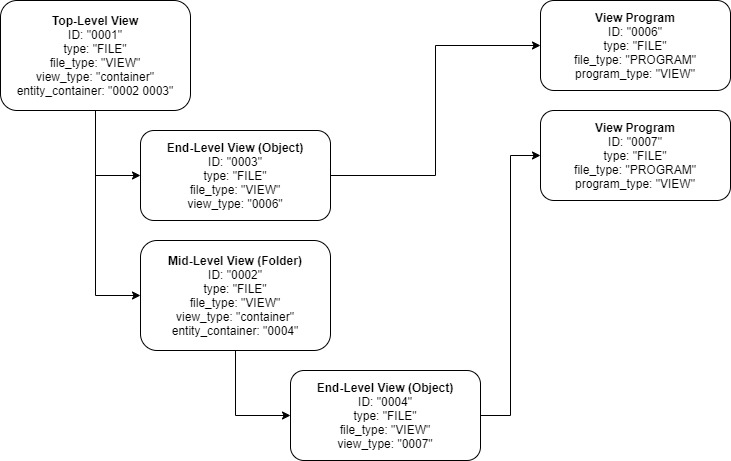
A view that contains children, should have its "view_type" property set to "container", and should include a property named "entity_container" which lists the view children. Each children view is a different entity. This list contains the IDs of the children view entities separated by spaces.
If the view is not a container, its "view_type" must be set to the ID of a View Program entity. Please review the View Programs section for more information on these programs.
The following diagram illustrates the relationship between these different entity types and their properties:
Setting view object inputs
The use of user-supplied programs allows the organization to add new types of visual objects dynamically, after the spatial platform is deployed. This also implies the inputs and behavior of these objects may not be known in advance to the application developers.
In order to construct a view entity of a specific type, the application must know which inputs the object type requires. This can be achieved in two ways:
- The application knows the inputs because it also knows the program (for instance, the application has first submitted the program and then it submits the view entity)
- The application discovers the inputs for the program using the REST API. See Getting Program Inputs for this case.
To set a particular input, first lookup its type and review how values should be encoded. Then, proceed to set the input value as a property in the view entity. This property will have a special name, which will be in the form:
input_value_#id#
Where #id# should be replaced by the identifier of the input.
Predefined view object types
The platform includes a predefined set of view object types:
|
Type |
Description |
|
com.voxelfarm.program.view.terrain |
A terrain surface. Has these inputs:
|
|
com.voxelfarm.program.view.mesh |
An indexed mesh. Has these inputs:
|
|
com.voxelfarm.program.view.blockmodel |
A voxelized block model. Has these inputs:
|
|
com.voxelfarm.program.view.pointcloud |
An indexed point cloud. Has these inputs:
|
|
com.voxelfarm.program.view.drillholes |
An indexed drill hole model. Has these inputs:
|
Example: Using predefined types
This example will create two objects: a top level view that contains another view object. Before anything, we will use the call described in the Requesting a new ID section to obtain two new IDs for the objects.
First, we create a root view container. This will appear in the UI as a top level view.
|
Invoke-WebRequest -Uri "http://localhost:58697/entity.ashx?id=1A5D65CBE25942B7A4594DD57C55F904&project=D9927BF62BFA4CCD930CBC716601D09C" ` -Method "POST" ` -Headers @{ "User-Agent"="Mozilla/5.0 (Windows NT 10.0; Win64; x64) AppleWebKit/537.36 (KHTML, like Gecko) Chrome/85.0.4183.102 Safari/537.36" "Accept"="*/*" "Origin"="http://localhost:58697" "Sec-Fetch-Site"="same-origin" "Sec-Fetch-Mode"="cors" "Sec-Fetch-Dest"="empty" "Referer"="http://localhost:58697/cloud/project.html?id=D9927BF62BFA4CCD930CBC716601D09C" "Accept-Encoding"="gzip, deflate, br" "Accept-Language"="en-US,en;q=0.9,es;q=0.8" } ` -ContentType "application/json; charset=UTF-8" ` -Body "{`"ID`":`"1A5D65CBE25942B7A4594DD57C55F904`", `"project`":`"D9927BF62BFA4CCD930CBC716601D09C`", `"name`":`"New View`", `"type`":`"FILE`", `"file_type`":`"VIEW`", `"view_type`":`"container`", `"state`":`"COMPLETE`", `"file_date`":`"1601166681260`", `"entity_container`":`"A20307F8C120444E9FBFAB9298B2F8D7`", `"file_folder`":`"0`"}" |
Then we create at least one visual object inside the view. In this example we will add a terrain surface, using the "com.voxelfarm.program.terrain" type:
|
Invoke-WebRequest -Uri "http://localhost:58697/entity.ashx?id=A20307F8C120444E9FBFAB9298B2F8D7&project=D9927BF62BFA4CCD930CBC716601D09C" ` -Method "POST" ` -Headers @{ "User-Agent"="Mozilla/5.0 (Windows NT 10.0; Win64; x64) AppleWebKit/537.36 (KHTML, like Gecko) Chrome/85.0.4183.102 Safari/537.36" "Accept"="*/*" "Origin"="http://localhost:58697" "Sec-Fetch-Site"="same-origin" "Sec-Fetch-Mode"="cors" "Sec-Fetch-Dest"="empty" "Referer"="http://localhost:58697/cloud/project.html?id=D9927BF62BFA4CCD930CBC716601D09C" "Accept-Encoding"="gzip, deflate, br" "Accept-Language"="en-US,en;q=0.9,es;q=0.8" } ` -ContentType "application/json; charset=UTF-8" ` -Body "{`"ID`":`"A20307F8C120444E9FBFAB9298B2F8D7`", `"name`":`"Sept 2009 `", `"view_type`":`"com.voxelfarm.program.view.terrain`", `"input_label_e`":`"Terrain`", `"input_filter_e`":`"8`", `"input_type_e`":`"3`", `"input_value_e`":`"67448DFF1C2F4C3AA7F9D858CE30A455`", `"input_label_colors`":`"Use Ortho-imagery`", `"input_filter_colors`":`"0`", `"input_type_colors`":`"6`", `"input_value_colors`":`"0`", `"input_label_normals`":`"Use high resolution detail`", `"input_filter_normals`":`"0`", `"input_type_normals`":`"6`", `"input_value_normals`":`"0`", `"input_type_colorlegend`":`"7`", `"project`":`"D9927BF62BFA4CCD930CBC716601D09C`", `"type`":`"FILE`", `"file_type`":`"VIEW`", `"state`":`"COMPLETE`", `"file_date`":`"1601166681446`", `"file_folder`":`"0`", `"virtual`":`"1`"}" |
The new view object points to a terrain dataset with ID "67448DFF1C2F4C3AA7F9D858CE30A455".
Also note that the child view has the "virtual" property set to "1". This signals the application this entity is a building block for another entity and should not be listed as a top element in the UI.
Adding Users to Projects
The REST interface enforces a simple security model. In this model, a single user may be associated with multiple projects, and each project will have multiple users associated with it. In every case, these associations will have one of two access levels:
- Read-only access: The user can see the list of objects in the project, but cannot create, modify or delete objects. The user will also be able to load the views in the project and see the visualizations. Once the user has loaded a view, the user will be allowed to modify the view locally (for instance, changing filters, color mappings, adding and removing objects) but the user will not be allowed to save any changes made to the view. The user will not be allowed to invite users to the project, nor will be allowed to modify access levels for existing users.
- Full-access: The user will be allowed to perform all operations in the project, including inviting other users and modifying access levels of existing users.
PROJECT_REF and USER_REF entities
A single user-project association requires two different entities in the system:
- An entity of type "PROJECT_REF", which links the project to the user
- An entity of type "USER_REF", which links the user to the project
Both entities have a property named "access_level", which can have one of three values:
- "none" -- Used to block access, it is the default value in case the property or object does not exit
- "read" -- Used for read-only access
- "full" -- Used for full access
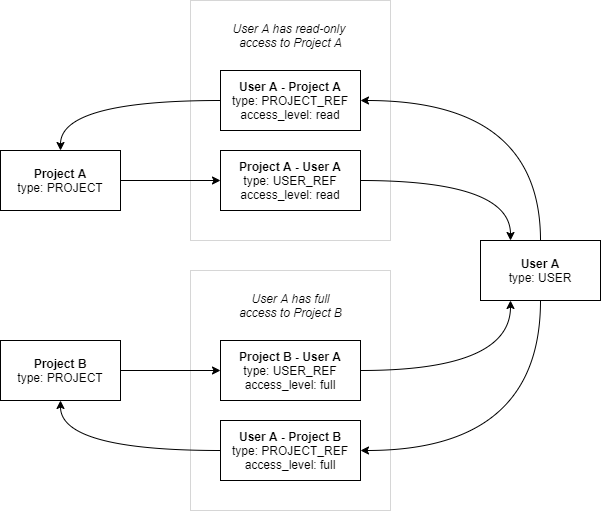
It is up to the application to ensure the "access_level" property has the same value for any pair of PROJECT_REF and USER_REF entities. If the application fails to enforce this symmetry, this could lead to unpredictable behavior as API calls will be checking different values depending on the context of these calls.
The following diagram illustrates a scenario in which one user is assigned to two different projects:
Understanding collections
The REST entity model supports the concept of a collection. A single entity may contain multiple collections. Like single-value properties in the entity, collections have a unique name in the entity. For instance, the "users" collection in a "PROJECT" entity will list all the "USER_REF" entities that belong to that particular project entity. There is also one default collection for every entity, which contains at least the entity. The default collection is identified by an empty string.
In fact, the call described in the Getting all Project Entities section, requests the default collection for a given project entity. In the case of projects, the default collection contains all spatial entities contained by the project. The call to retrieve the default collection for the project with "myproject" ID would be:
http://localhost:58697/entity.ashx?project=myproject
This will return all entities contained by the default collection, including the project entity itself.
If instead, we would like to access the user collection for the project, the REST call would look like this:
http://localhost:58697/entity.ashx?project=users:myproject
Here we have added the "users:" term to the ID of the project. Instead of requesting the default collection, we are requesting the entities in the "users" collection.
Note that the "project" parameter is still used in this call, but this parameter in fact denotes a collection name, not a project ID anymore. The "project" parameter would also be used if the entity holding the collection was not a project, in the context of this API, the property represents a collection. The name "project" was used for the sake of simplicity, since for most use cases, projects are the only collections the API user needs to use.
The same applies to the "project" property in entities. This property must contain the name of the collection that owns the entity. In most cases, this will be an actual project entity.
Users are collections too in this model. The default collection for a user contains all PROJECT_REF entities.
Adding USER_REF entities
Entities of USER_REF type bind users to projects. These entities are contained in the "users" collection for the project. The following table lists the expected properties for this entity, and the rules for their values:
|
ID |
USER_REF entities will have their id composed from three parts: users:<ProjectID>:<UserID> Here "ProjectID" should be replaced by the ID of the project. "UserID" should be replaced by the ID of the user, which is the User Id used to login to the application converted to a Base64 string. |
|
type |
Set to "USER_REF" |
|
access_level |
Set to "read" to provide read-only access, set to "full" to provide full access. |
|
project |
Contains the identifier for the collection that owns this entity. The collection identifier is composed in the following way: users:<ProjectID> Here "ProjectID" should be replaced by the ID of the project. |
|
user_ref |
Contains the user ID as a Base64 value. |
Adding PROJECT_REF entities
Entities of PROJECT_REF type bind projects to users. These entities are contained in the default collection for the user entity. The following table lists the expected properties for PROJECT_REF entities, and the rules for their values:
|
ID |
PROJECT_REF entities will have their id composed from three parts: users:<ProjectID>:<UserID> Here "ProjectID" should be replaced by the ID of the project. "UserID" should be replaced by the ID of the user, which is the User Id used to login to the application converted to a Base64 string. |
|
type |
Set to "PROJECT_REF" |
|
access_level |
Set to "read" to provide read-only access, set to "full" to provide full access. |
|
project |
Contains the identifier for the collection that owns this entity, which in this case is the user's default collection (not a project entity). The collection identifier in this case is equal to the user ID converted to Base64. |
|
project_ref |
Contains the identifier of the project entity that will be bound to the user. |